Alexa Setup
This guide explains how to complete the setup of Alexa Echo with the Loft App.
By connecting Alexa Echo with the Loft App, you can directly operate or control all your Loft devices using voice commands through Alexa integration — making your smart home experience faster and more convenient.
Watch The Video Tutorial
Prerequisites
To begin setting up Alexa with the Loft App, ensure you have the following:
- Loft App installed on your device.
- Alexa App installed on your device.
- Alexa Echo is in setup mode (you can do this by pressing and holding the Action button for a few seconds — this may vary depending on your model).
- Gateway is mandatory — ensure that the Gateway device is added to a room in the Loft App before starting the Alexa integration.
- Without the gateway added, connected devices in the Loft App cannot be controlled through Alexa.
Steps to Set Up Alexa
- Open the Alexa App. If you are opening it for the first time, a Welcome screen will appear.
- Sign in with your existing Amazon account using your email/phone number and password, or create a new account, then tap Continue.
- Follow the on-screen instructions to set up your profile.
- Put your Alexa Echo into setup mode.
- You will now be prompted to Turn on Bluetooth on your mobile device, your device will start searching. Connect your phone to the Alexa Echo device by selecting and pairing it in the app.
- After that the device will start searching for Wi-Fi networks. Select your Wi-Fi network and connect it.
- Now your Alexa app setup is completed.
Integrate Alexa Echo with Loft App
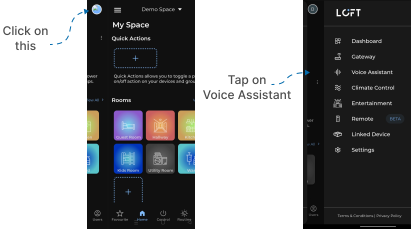
- Open the Loft App.
- Tap the side menu (hamburger icon) in the top-left corner.
- Select Voice Assistant from the menu.
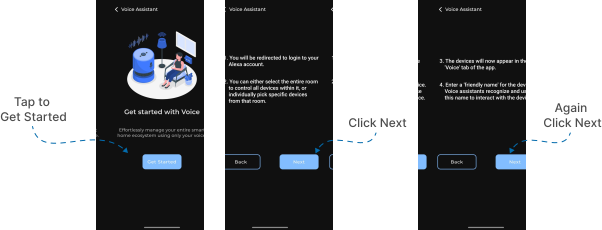
- The Get Started with Voice screen will appear — tap the Get Started button.
- Now, an information screens will appear — tap Next.
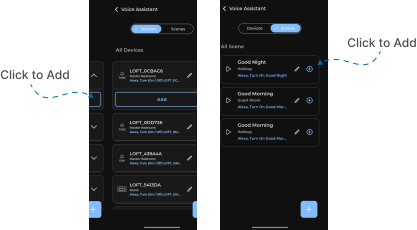
- The Voice Assistant screen will appear with two tabs — Devices and Scenes.
- Under these tabs, all your available devices and scenes will be displayed.
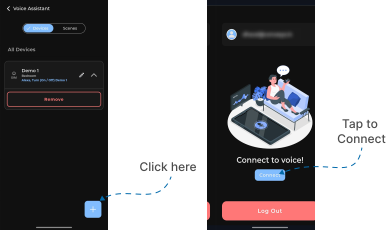
- You can add them as needed by clicking the Add button for devices and the + button for scenes. Maybe by default, all devices are added automatically (you can remove any if you want).
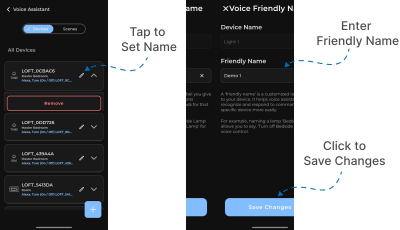
- You can also edit and set a friendly name for each device or scene — this helps Alexa recognize and respond to your commands more easily.
- To assign a friendly name, click the pen (edit) icon and enter the name in the provided input field. Once you've made your changes, tap Save Changes to apply them.
- Now, proceed to the final step — tap the + (Add) button below.
- The Account Connection screen will appear.
- Tap the Connect button.
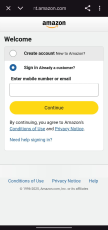
- Now, you will be navigated to the Amazon Sign-In screen. Enter your Alexa Amazon account credentials (the same one used in the Alexa app) and tap Continue.
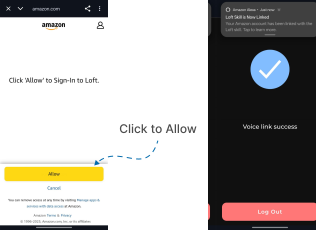
- A confirmation prompt from Amazon will appear — tap Allow to sign in to Loft.
- Once completed, a success screen will display “Voice Link Success”.
- Ensure that your Gateway is active and properly added to a room — this is essential for Alexa to discover and control Loft devices.
✅ Setup Complete!
Your Alexa Echo is now successfully connected with the Loft App.
All added devices and scenes are ready to be operated or controlled through Alexa — simply use voice commands with your set friendly names to control your smart home instantly.