Master Scene
This guide explains how to create, edit, execute, and delete a Master Scene in the Loft App.
This feature allows you to control or execute all your room scenes together with a single tap — helping you quickly change the mood and environment of your space.
Watch The Video Tutorial
Steps to Create a Master Scene
-
Open the Loft App
-
Navigate to the Control Section
- Go to the Control tab located next to the Home tab.
- Under the Master Scenes section, tap on the “+ Add” button.
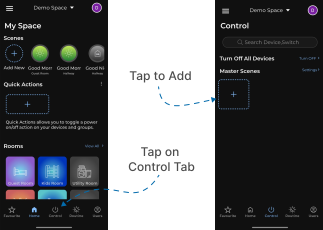
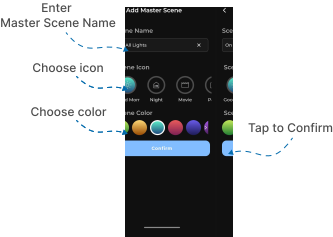
- The Add Master Scene screen will appear.
- Enter a name for your master scene based on your preferences.
- Choose an icon and color for your master scene.
- Tap Confirm to continue.
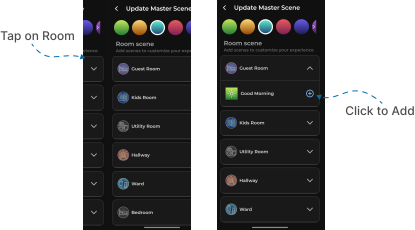
- A Room Selection screen will appear showing all your available rooms.
- Tap on a room you want to include in the master scene.
- Under each room, available scenes (previously created) will appear in a dropdown menu.
- Tap the “+” button next to each scene you want to add.
- Add room scenes as per your preferences.
Note:
- You can only add one scene from each room to a master scene. If you try to add multiple scenes from the same room, they will not be added.
- Once done, go back — your newly created master scene will now appear under the Master Scene section.
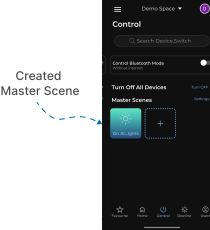
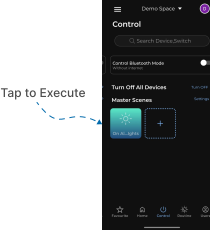
- Execute Master Scene
- To activate your master scene, simply tap on it.
- All the selected room scenes will execute simultaneously based on their configured settings.
- You can create multiple master scenes and use them to instantly change the entire environment with one tap.
Edit Master Scene
Watch The Video Tutorial
- Tap on Settings located next to the Master Scenes section.
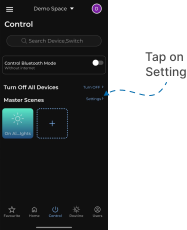
- A list of all your available master scenes will appear.
- Tap the three dots (
⁝) icon next to the master scene you want to edit and From the popup menu, select Edit, or tap directly on the master scene name.
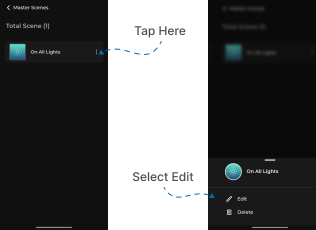
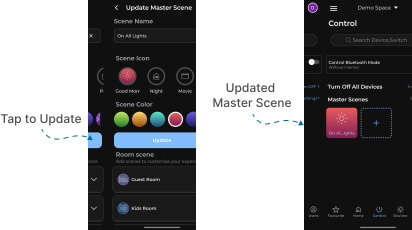
- The Update Master Scene screen will open — here you can:
- Change the name, icon, or color of the master scene.
- Add or remove room scenes as needed.
- After making your changes click Update and go back — your updated master scene will now operate as per the new settings.
Delete Master Scene
Watch The Video Tutorial
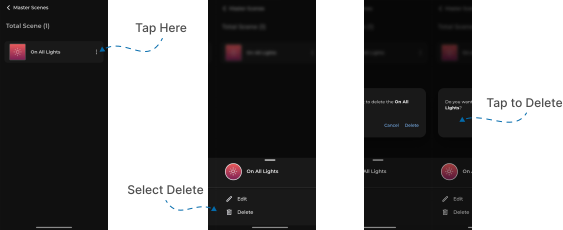
- Tap on Settings located next to the Master Scenes section.
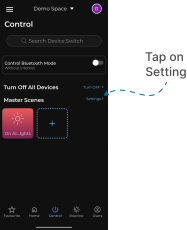
- A list of all your available master scenes will appear.
- Tap the three dots (
⁝) icon next to the master scene you want to delete. - From the popup menu, select Delete.
- A confirmation popup will appear — tap Delete again to confirm.
- The selected master scene will be successfully removed.