Matter Integration
Matter integration allows devices from the Loft Dashboard to connect with popular smart home platforms such as Google Home, Apple Home, and Amazon Alexa. This feature enables centralized control and seamless communication between devices across different ecosystems.
Requirements
- Matter support must be enabled in the LMC system
- At least one smart home platform must be available:
- Google Home
- Apple Home
- Amazon Alexa
- A stable network connection is required
How to Connect Matter Devices
- Open the Loft Dashboard
- Navigate to the Integration page
- All available devices will be visible on the screen
- On the right-side panel, locate the Bridge section
- Click on "View QR Code"
- A QR code will be displayed on the screen
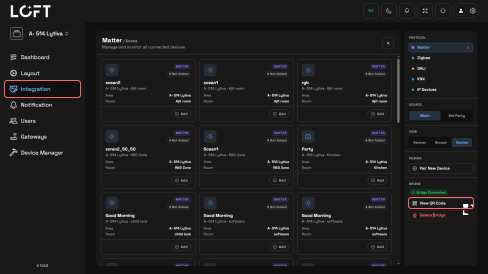
QR Code Pairing Process
- Open any supported smart home application (Apple Home / Google Home / Alexa)
- Use the app's QR code scanning feature
- Scan the QR code displayed on the dashboard
- Device pairing will start automatically
- After successful scanning, the connection will be completed
Result After Connection
- Devices become visible inside the selected smart home app
- Devices can be controlled directly from that platform
- Integration enables cross-platform automation and control
Add Devices, Groups, and Scenes
After the connection is completed, devices, groups, or scenes can be added from the dashboard for control.
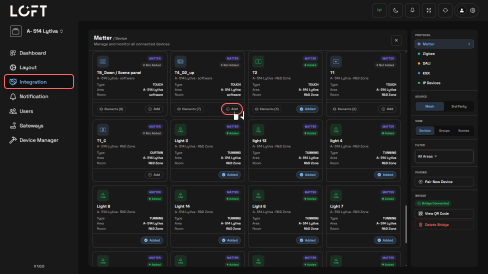
How to Add a Device
- Open the Integration page in the dashboard
- All available devices will be visible on the screen
- Select the required device
- Click on the (+) Add button below the device
- The device will be added successfully
How to Add a Group
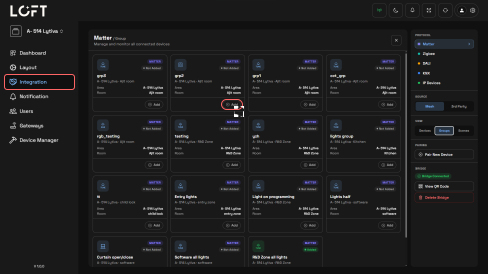
- Open the Integration page
- On the right-side panel, locate the View section
- Select the Group option
- All available groups will be displayed on the screen
- Select the required group
- Click on the (+) Add button below the group
- The group will be added successfully
How to Add a Scene
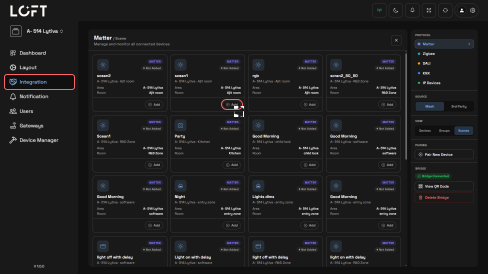
- Open the Integration page
- On the right-side panel, locate the View section
- Select the Scene option
- All available scenes will be displayed on the screen
- Select the required scene
- Click on the (+) Add button below the scene
- The scene will be added successfully
✅ Setup Complete! Your devices, groups, and scenes are now added and can be controlled through Matter from your connected smart home platform.