Zigbee Integration
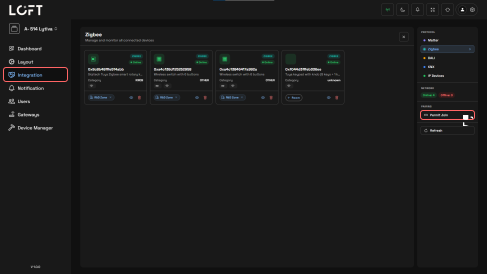
The Zigbee Integration module in the Loft Dashboard enables Zigbee-compatible devices to be discovered, paired, assigned to rooms, and configured with automation actions. Once integrated, devices can be managed through the LOFT platform and incorporated into Groups and Scenes for centralized control and automation.
Adding a Zigbee Device
Before adding a Zigbee device, place it into Reset or Pairing Mode by following the manufacturer's instructions.
Steps:
- Open the Loft Dashboard.
- Navigate to Integration → Zigbee.
- Click the Permit Join button.
- The system will begin scanning for nearby Zigbee devices.
- All compatible devices in pairing mode will appear in the device list.
- Select the required device.
- Assign the device to the appropriate room.
- Save the configuration to complete the pairing process.
Note: Only devices in pairing mode can be discovered during the Permit Join process.
Configuring Device Actions
After a Zigbee device has been assigned to a room, automation actions can be configured through the LOFT Platform.
Supported Action Types:
-
Device The Device action allows direct control of an individual Zigbee device. Specific operations such as On/Off, Brightness, Color Temperature, or other supported functions can be assigned based on the device's capabilities. This option is ideal for controlling a single device without affecting other devices in the network.
-
Group Groups allow multiple Zigbee devices to be controlled simultaneously. A single command can operate all devices assigned to the same group, making it easier to manage multiple lights or devices together.
-
Scene Scenes execute predefined automation settings with a single command. Multiple devices can perform different actions simultaneously based on the configured scene, providing a convenient way to activate customized lighting and automation environments.
Supported Zigbee Devices
- Temperature
- Door Sensor
- Motion Sensor
- Gas Sensor
- 6 Switch Keypad
- Knob