Matter
The Matter setting enables the Loft Interface to act as a Matter bridge, allowing your smart home devices, scenes, and groups to be integrated with and controlled by popular smart home ecosystems like Apple Home, Google Home, and Amazon Alexa — with no extra hub required.
⚠️ Important Network Requirement:
The Loft Interface, your mobile device running the Matter-supported app, and your ecosystem hub (such as an Apple HomePod / Apple TV, Google Nest Hub, or Amazon Echo) must all be connected to the exact same Wi-Fi network for Matter pairing and communication to succeed.
Steps to Configure Matter Bridge
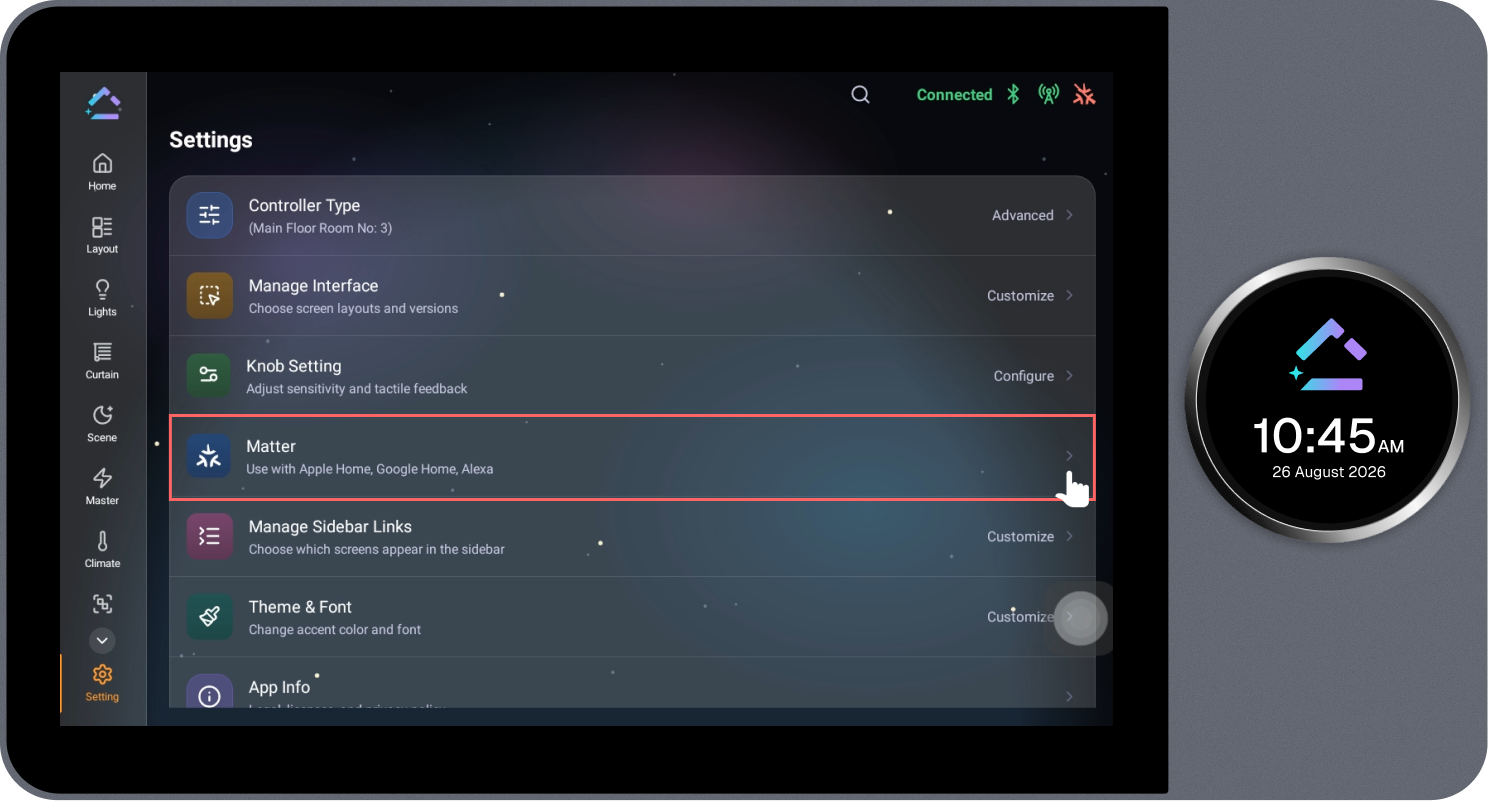
1. Open Matter in Settings
- On the Loft Interface, navigate to Settings from the left navigation sidebar.
- Locate the Matter option.
- Tap Matter to open its configuration screen.
2. Configure Matter Bridge
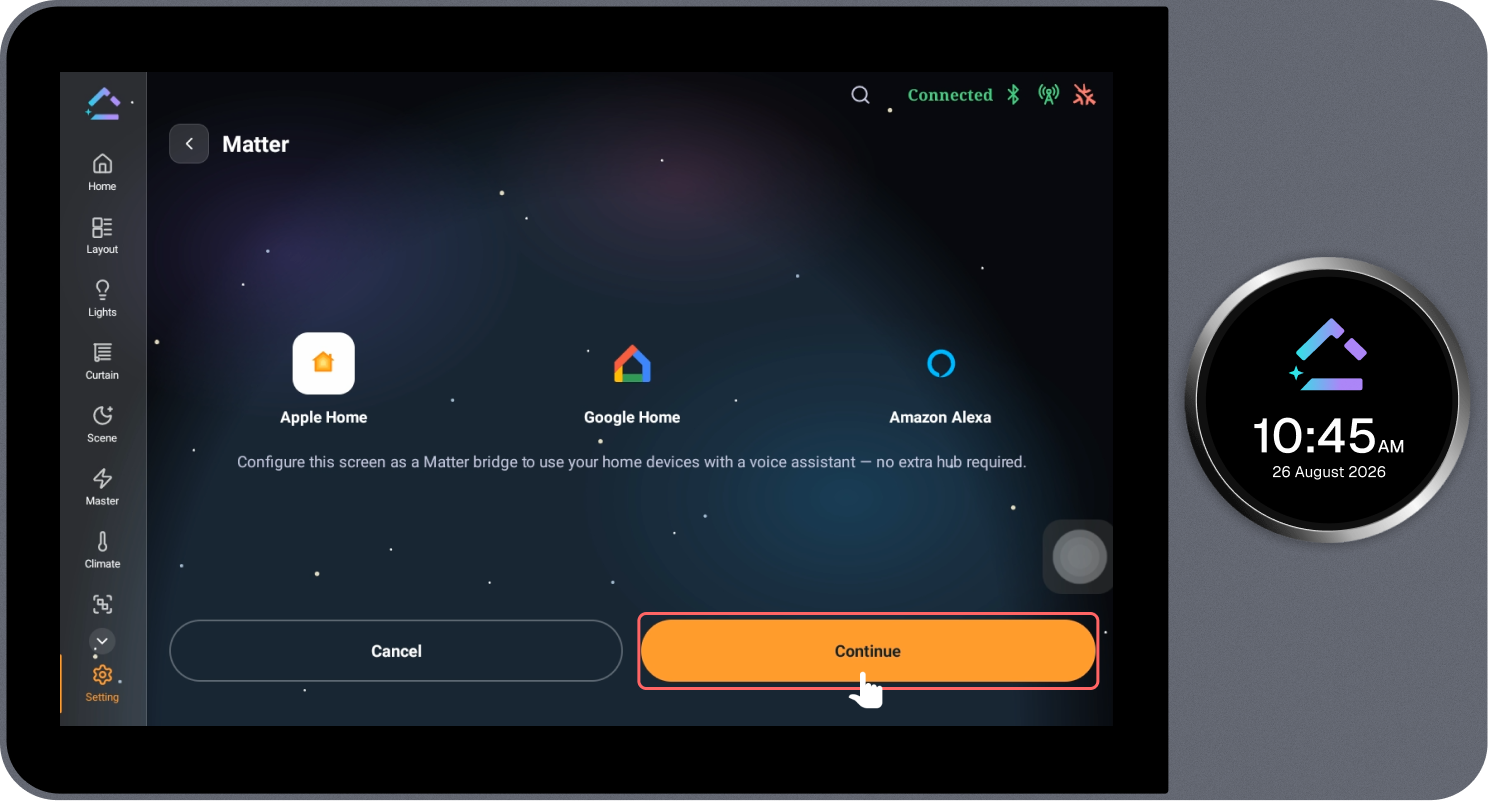
- The Matter overview screen opens, displaying supported voice assistant and smart home ecosystems: Apple Home, Google Home, and Amazon Alexa.
- Tap the Continue button at the bottom of the screen to start setting up the Matter bridge.
3. Assign Devices, Scenes, and Groups to Matter
- The Matter Assign screen appears with three category tabs:
- Devices — Displays individual lights, curtains, switches, and other devices.
- Scenes — Displays configured scenes.
- Groups — Displays configured device groups.
- Tap the “+” (Add) button on any device, scene, or group that you want to control through Matter.
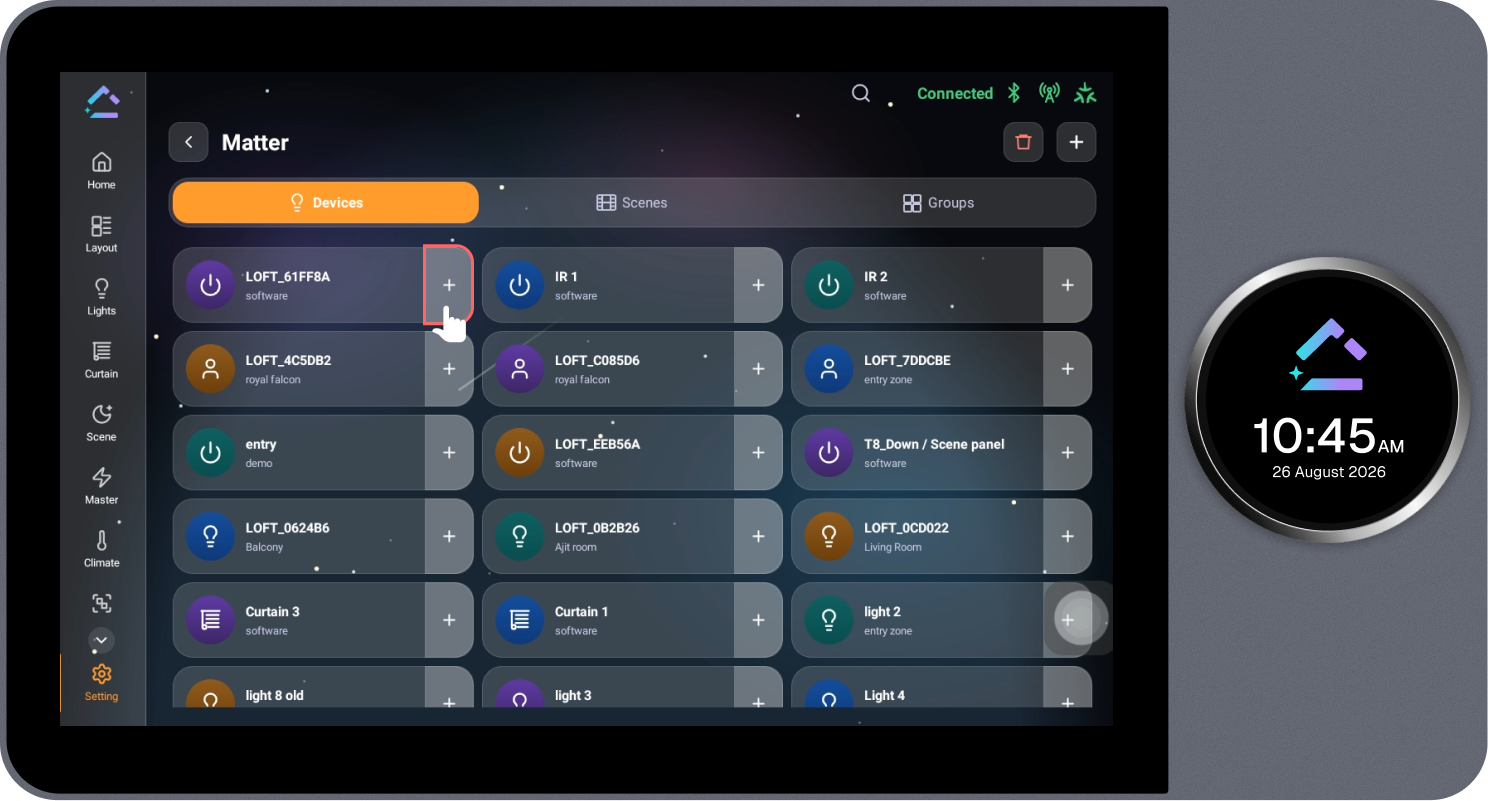
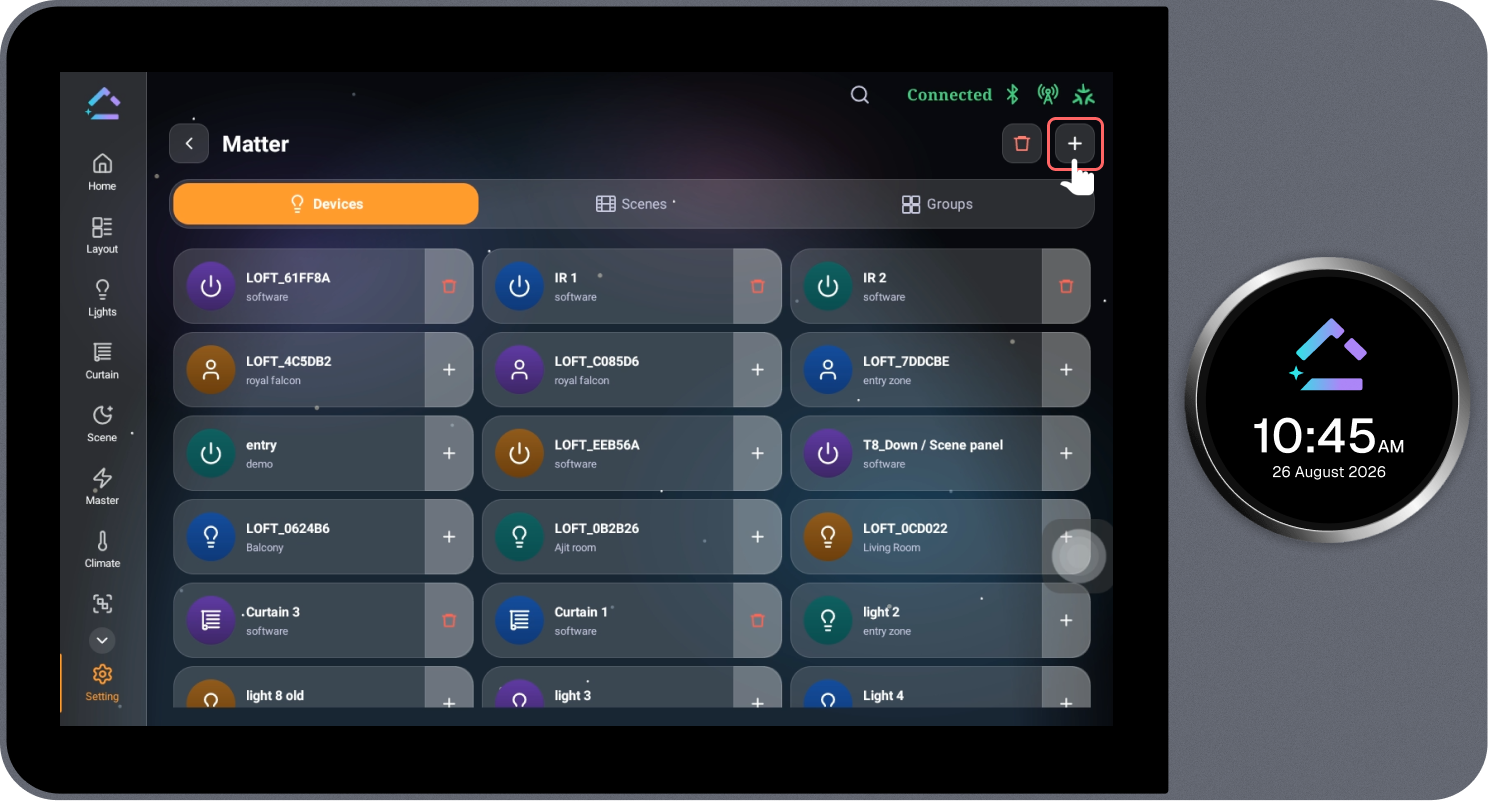
- Once added, the button for the selected item will change to a red delete/trash icon. You can switch between the Devices, Scenes, and Groups tabs to select everything you wish to bridge.
- After selecting all desired items, tap the “+” (Add) button located at the top-right corner of the header.
4. Pair with Matter-Supported App via QR Code
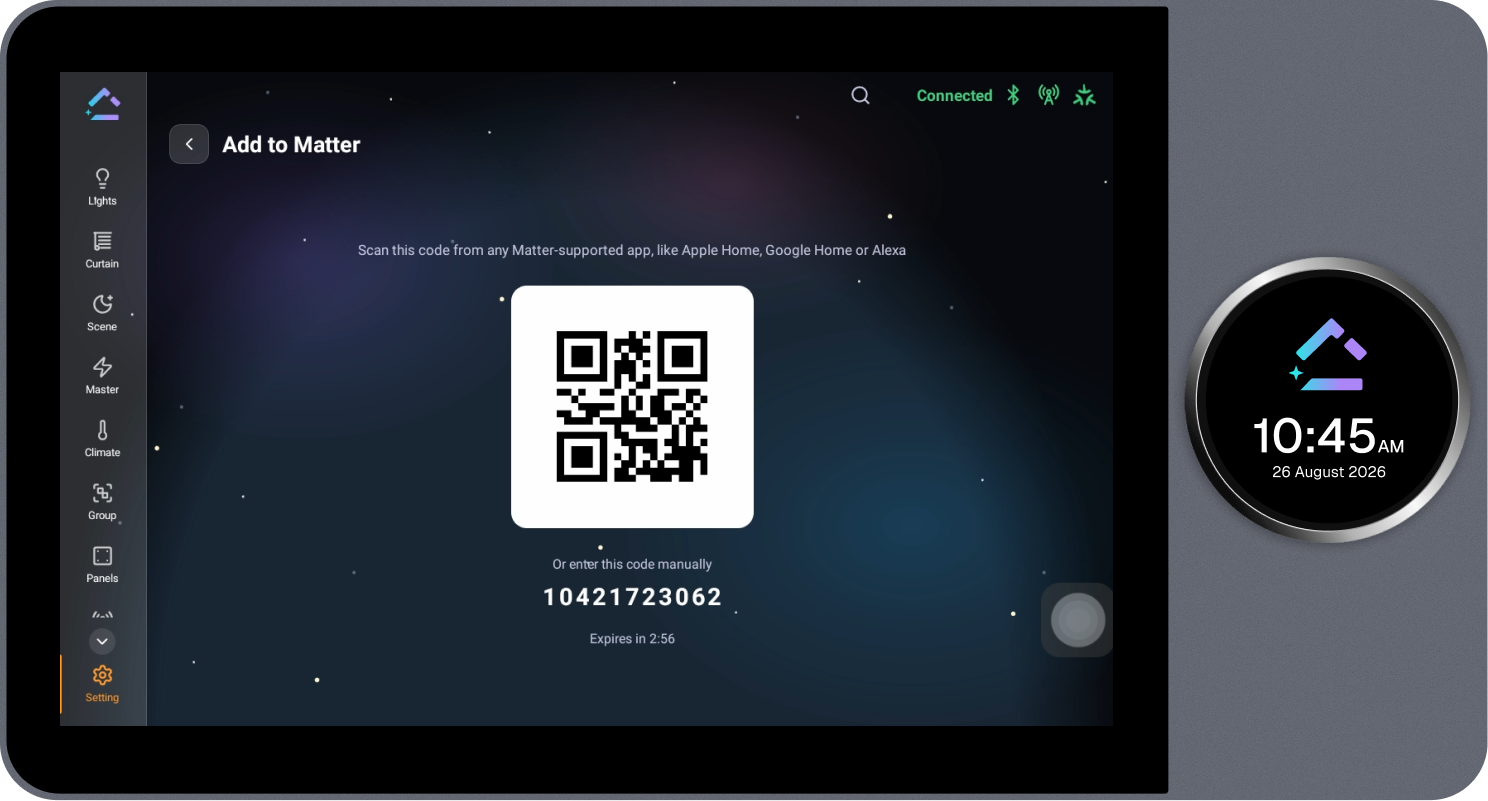
- The Add to Matter screen will appear, displaying a unique QR code along with a manual numeric setup code and an expiration countdown timer.
- Open your preferred Matter-supported application on your mobile device (Apple Home, Google Home, or Amazon Alexa).
- Use the app's Add Accessory / Add Device feature and scan the QR code displayed on the Loft Interface screen (or enter the numeric code manually).
- Follow the on-screen continuation prompts in your smart home app to finish setup.
✅ Setup Complete!
Your selected Loft devices, scenes, and groups are now bridged to Matter and can be controlled using your preferred smart home app and voice assistants.