Customizable Home Page Widgets
The Home page can be personalized by adding widgets for quick access to frequently used devices, scenes, and controls. Widgets are added, arranged, and removed directly on the Home page.
Adding a Widget
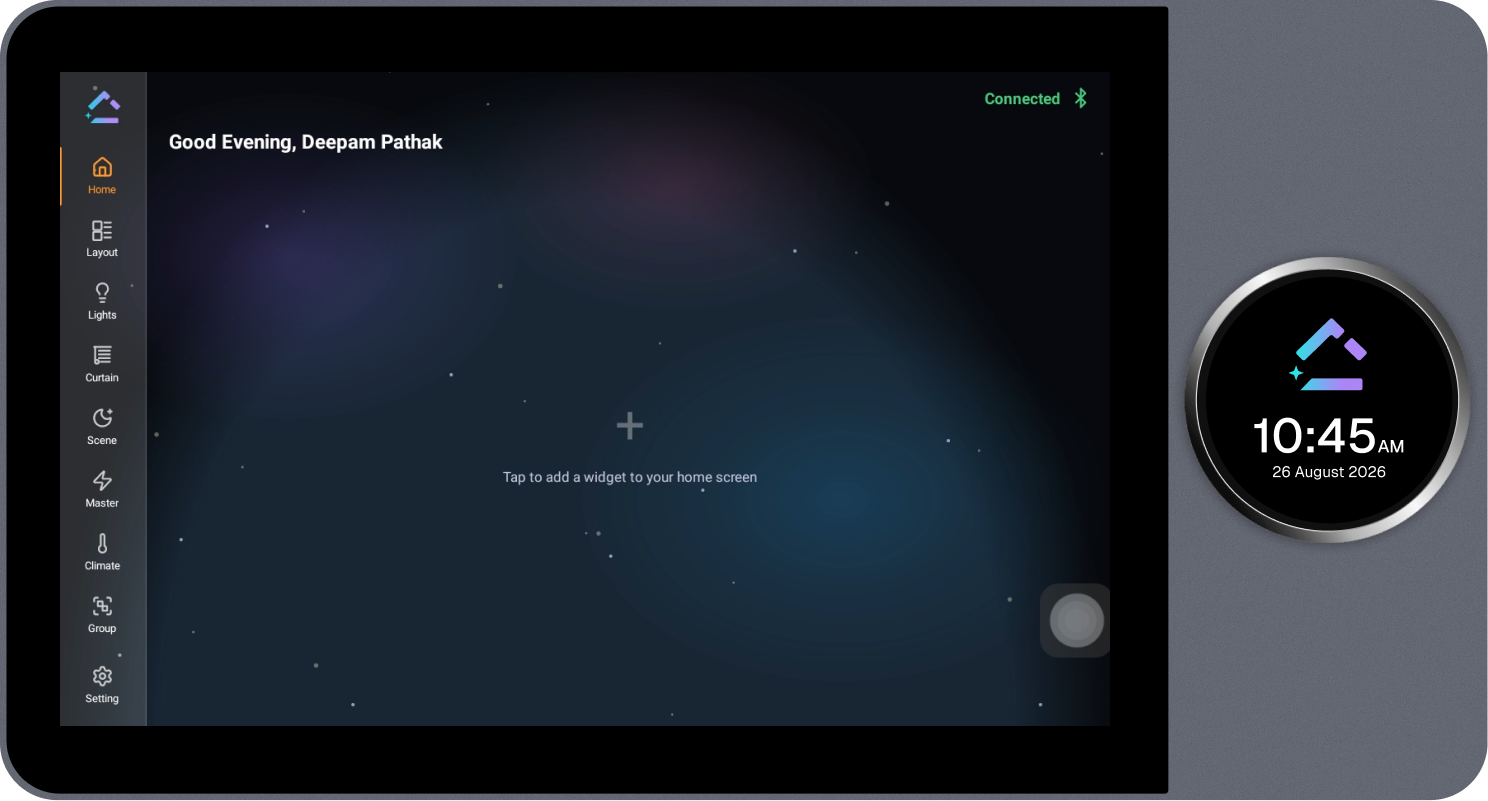
- On an empty Home page, a + icon and a "Tap to add a widget to your home screen" prompt are shown in the widget area. Select this + icon, or the + icon in the top-right corner.
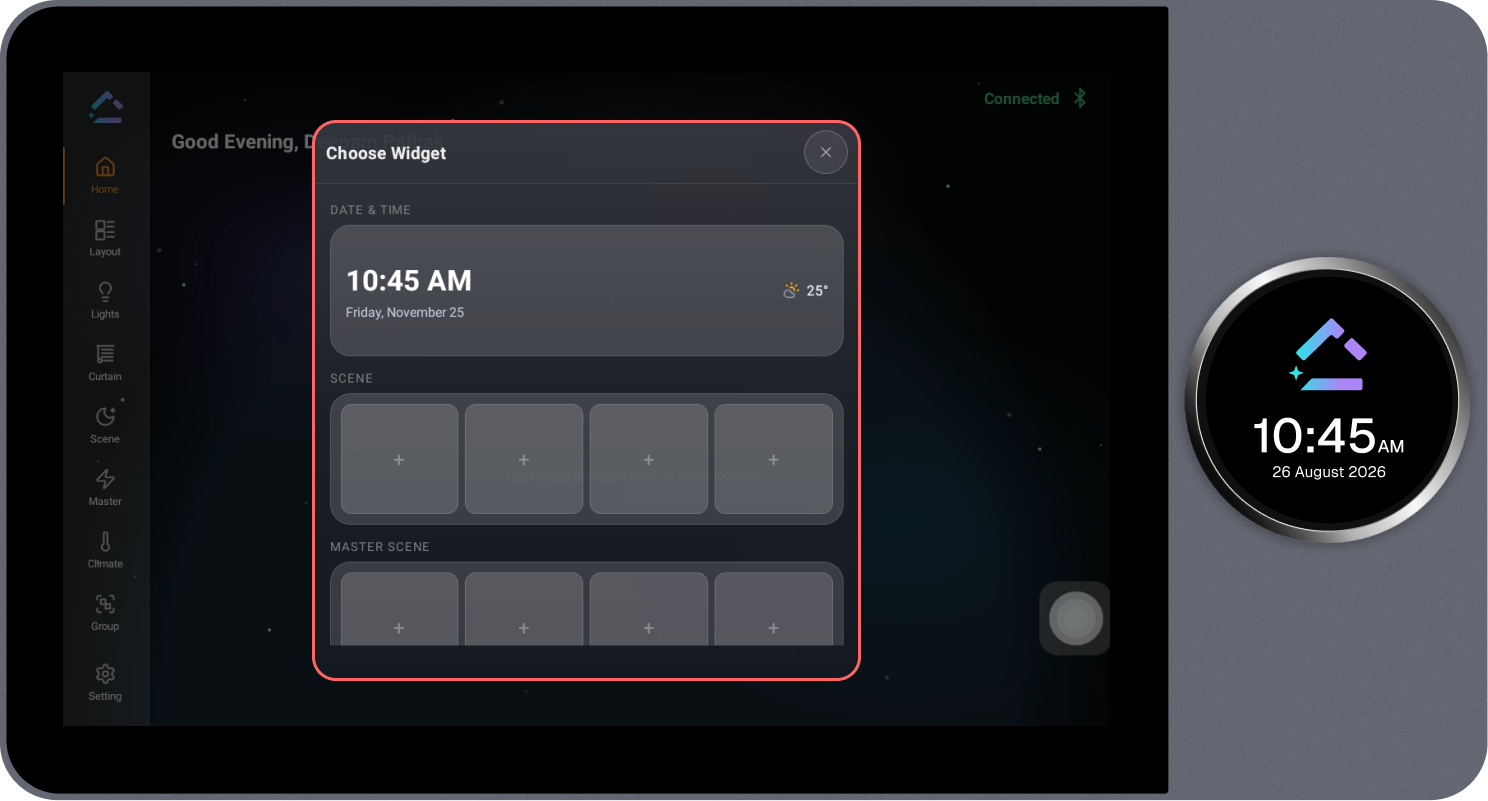
- The Choose Widget panel opens, showing the available widget categories.
- To add the required widget category, tap it from the Widget Modal. The widget will be added automatically to the Home page.
- The widget is added to the Home page in the next available position.
Device Control Widget
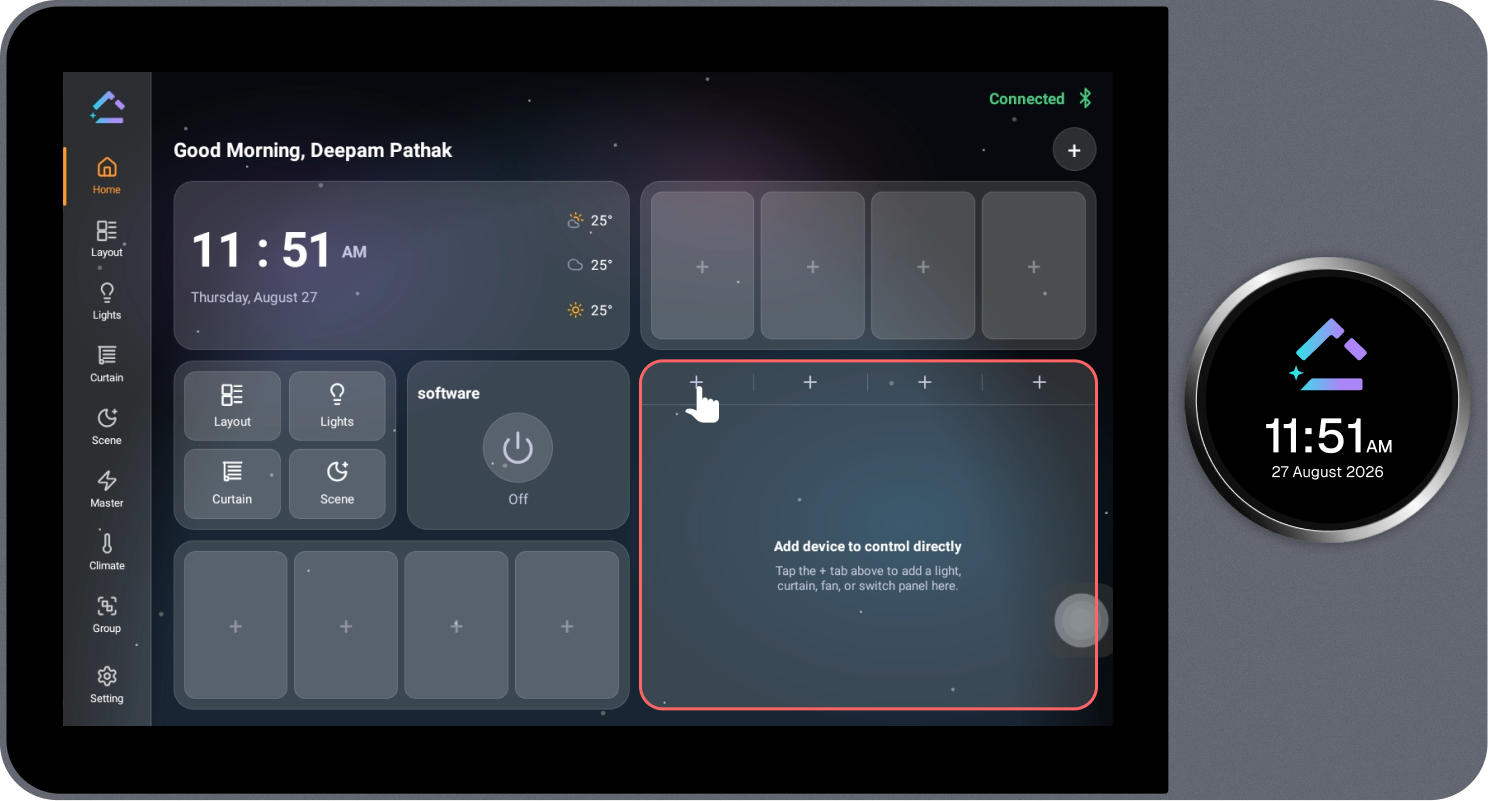
The Device Control widget allows a light, curtain, fan, or switch panel to be added for direct control from the Home page.
Steps
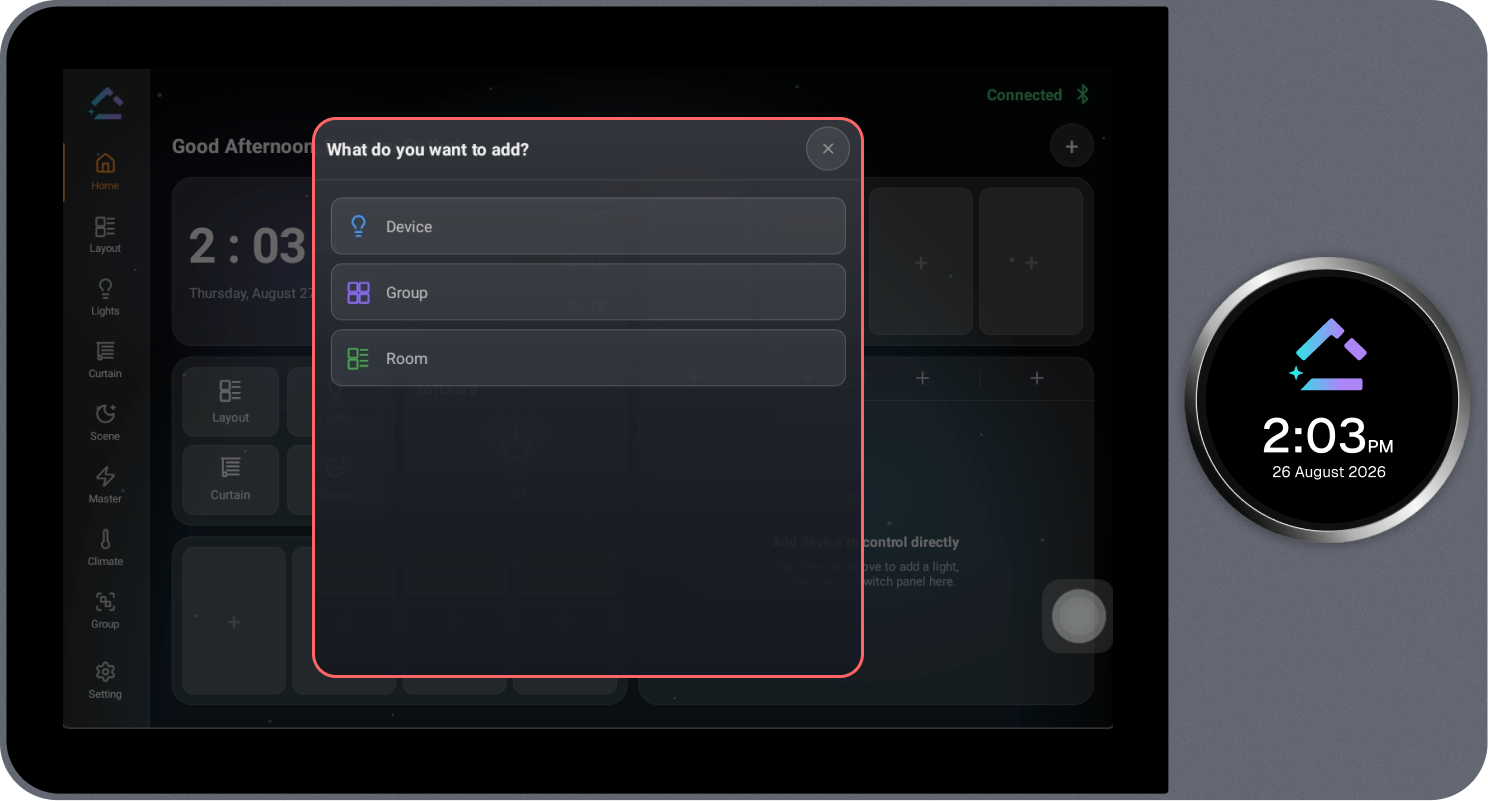
- On the Device Control area, select the + tab shown next to the prompt to add a device.
- Select the required device, group, or room to control. In this example, a device is selected; select any option based on the requirement.
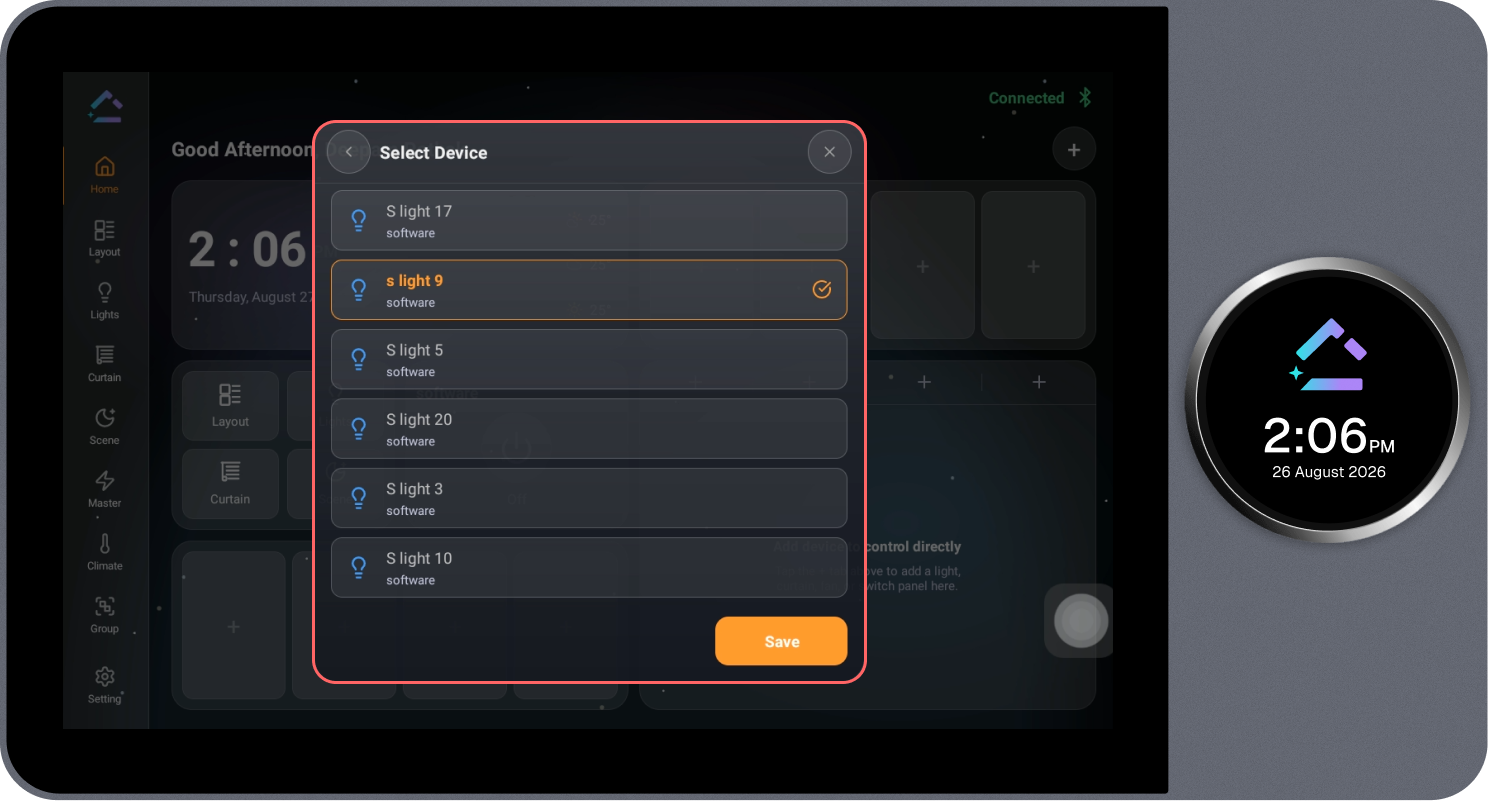
- Choose the device you want to control and tap Save. The selected device, group, or room will then appear in the Device widget on the Home page.
Populated Home Page
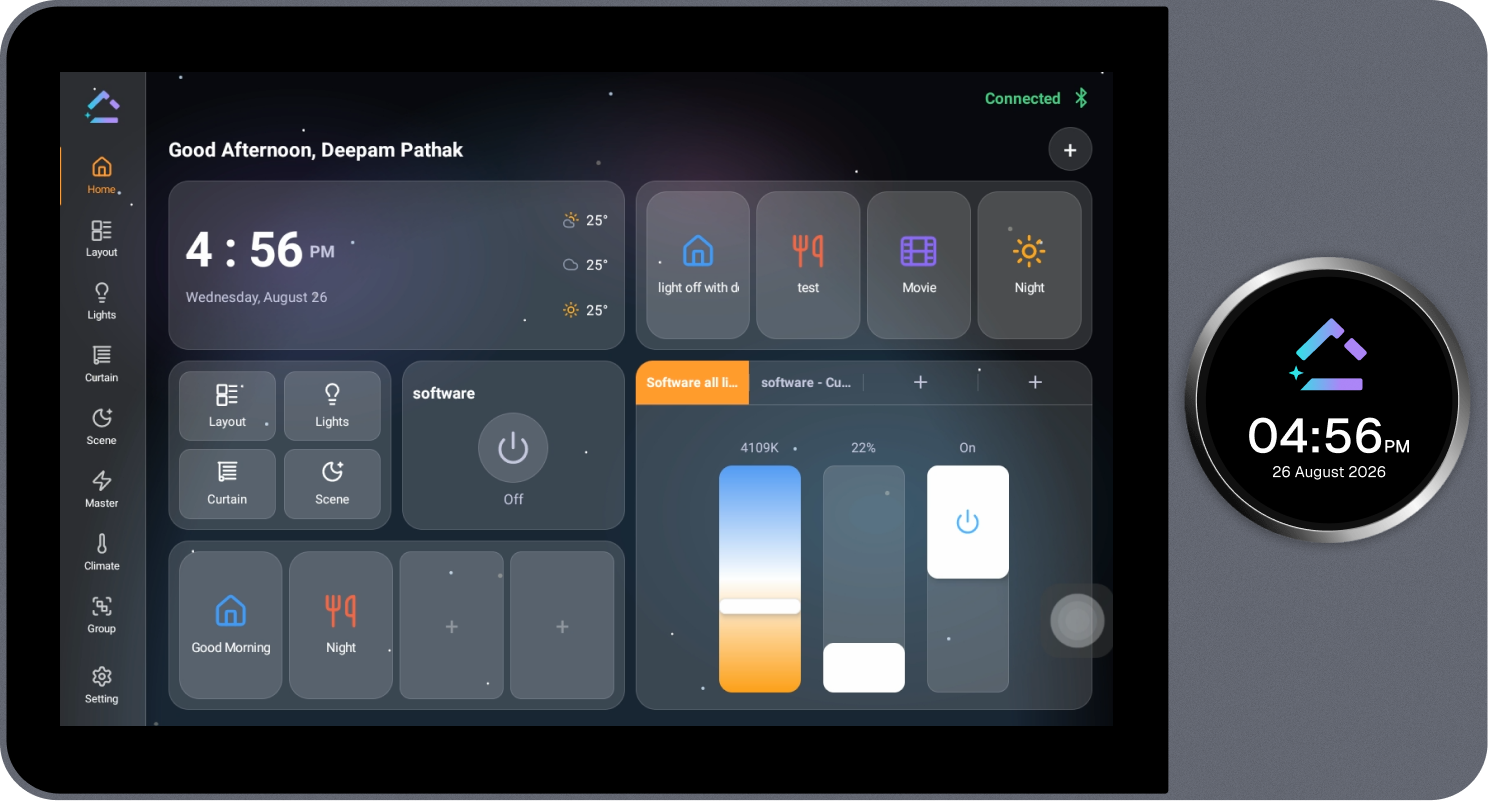
Once configured, the Home page displays all added widgets together, giving quick access to time and weather, scenes and master scenes, quick action shortcuts, and device controls. Widgets can be added, removed, or rearranged at any time to suit the required Home page layout.
Removing, Managing, or Rearranging a Widget
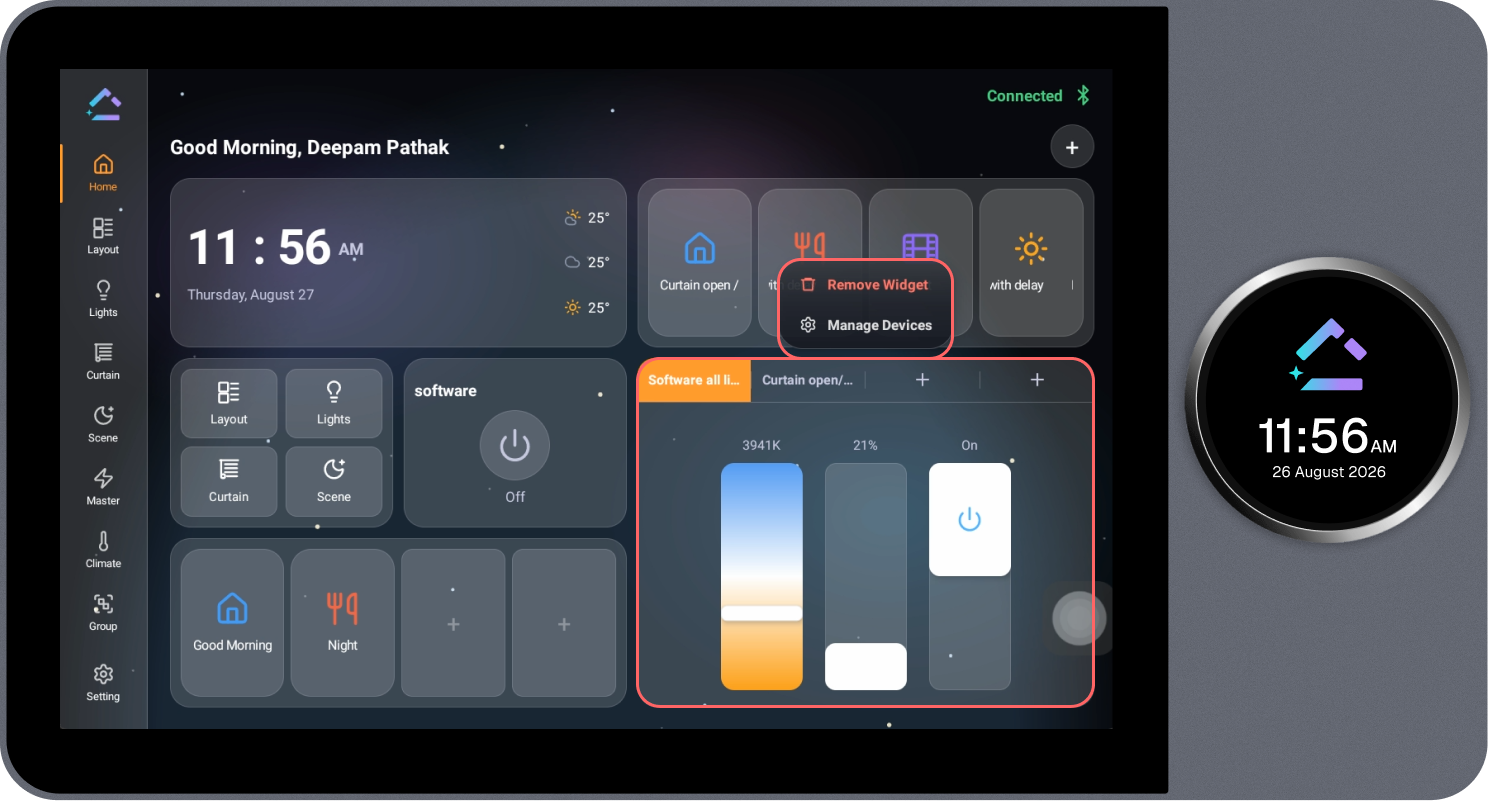
An added widget can be removed from the Home page, or its associated device can be managed, using a long press on the widget.
Steps
- Long-press the widget that needs to be managed or removed.
- Two options appear: Remove Widget and Manage Devices.
- Select Remove Widget to delete the widget from the Home page.
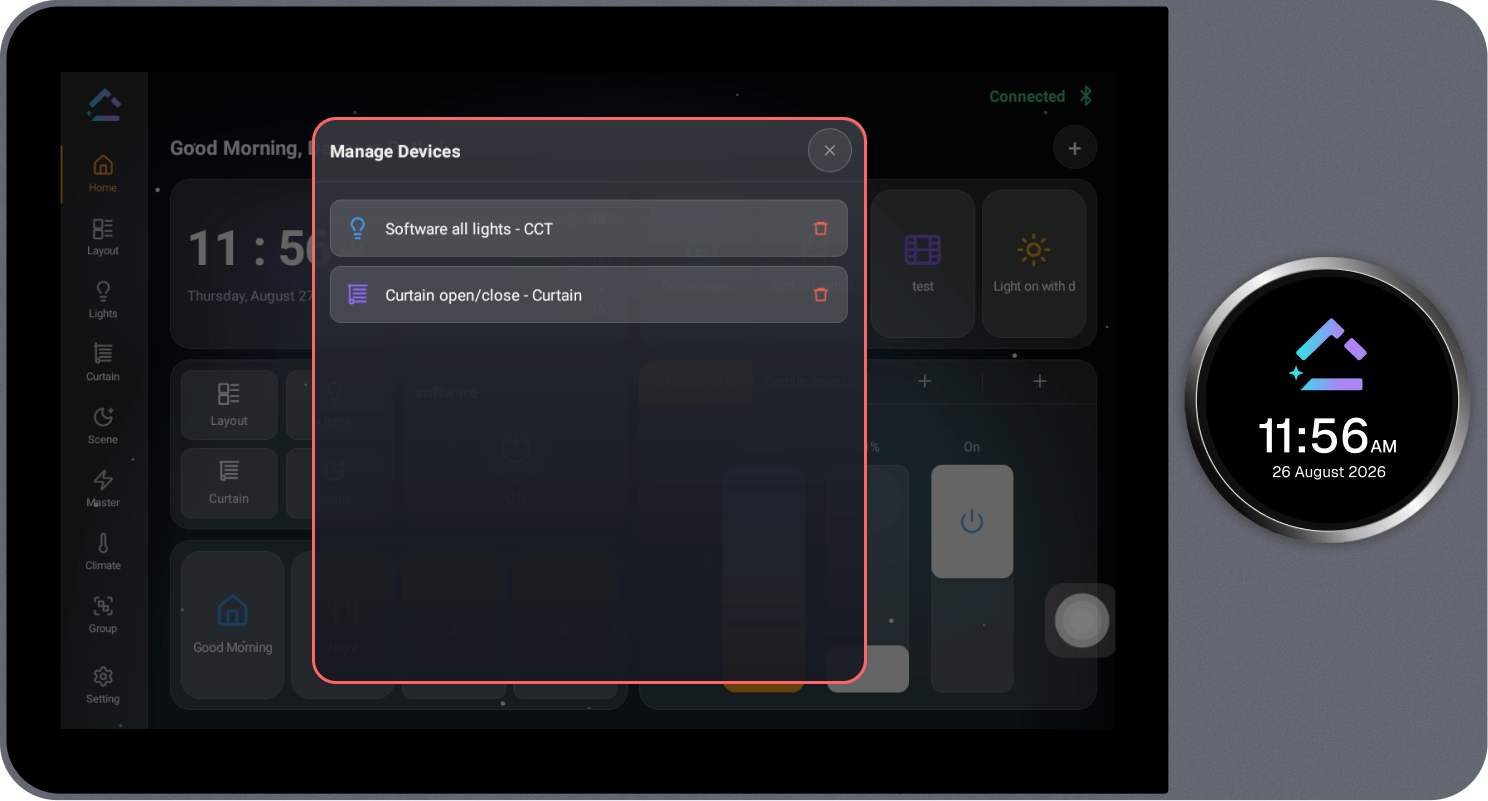
- Select Manage Devices to open the Manage Devices pop-up.
- In the Manage Devices pop-up, review the devices associated with the widget and select the delete icon next to a device to remove it from the widget.