Device View
This guide explains how to use the Device View feature in the Loft App.
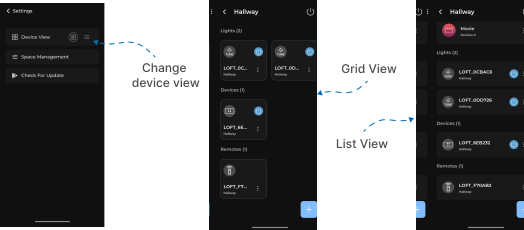
This feature allows you to change how devices are displayed within a room — either in Grid View or List View.
Watch The Video Tutorial
Steps to Change Device View
-
Open the Loft App
-
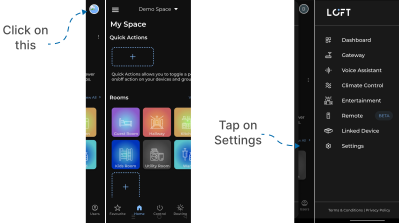
Go to Settings Section
- Tap the side menu (hamburger icon) at the top-left corner.
- Click on Settings option.
- Change Device View
- In the Settings screen, locate the Device View option.
- Two icons will appear on the right side representing different view styles: Grid View and List View.
- By default, the Grid View is selected — your devices are displayed in a grid layout within the room.
- Tap the List View icon to switch the layout. Now, all your devices will appear in a list format within the room.