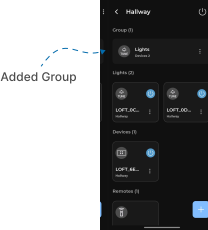
Add Group
This guide explains how to Add Group in the Loft App. This feature allows you to Add Multiple Devices in Group and control them together.
Watch The Video Tutorial
Steps to Add Group
-
Open the Loft App
- Navigate to the Rooms section.
-
Select a Room
- Tap on the room where you want to Add Group.
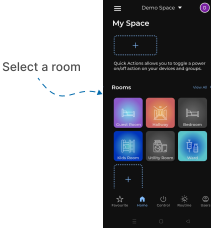
- Create a New Group
- Tap on the ‘+’ (Add) button at the bottom of the screen.
- A menu will appear — select Group.
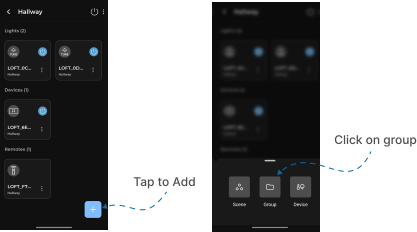
- Configure Group Details
- The Add Group screen will appear with input and icon selection options.
- Enter the Group Name you want to set.
- Choose an Icon for the group based on your preference, then tap Confirm.
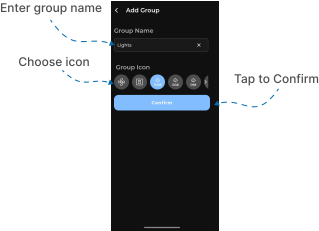
- Add Devices to Group
- The Group Devices section will appear, allowing you to add devices by selecting different tabs.
- You can add multiple types of devices such as AC, Fan, CCT, Dimmer, Curtain, RGB, Switch, etc.
- Tap the ‘+’ button next to each device you want to add to the group.

- Save and Confirm
- Once you’ve added all your desired devices, return to the room.
- Your group will now be successfully created and displayed in the Group Section.