Install Device
This guide explains how to install a new device using the Loft App.
Keep in mind: Device(s) can only be installed if a room has already been created.
Device Installation Guide
- Light
- Gateway
- Panel
- Sensor
- Curtain
- Wired IR
- Cool Master
- BLE Remote
- IR Blaster
Watch The Video Tutorial
Steps to Install Light Device
-
Open the Loft App
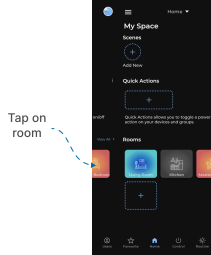
- Navigate to the Rooms section.
-
Select a Room
- Tap on the room where you want to install a light device.
- Add a Device
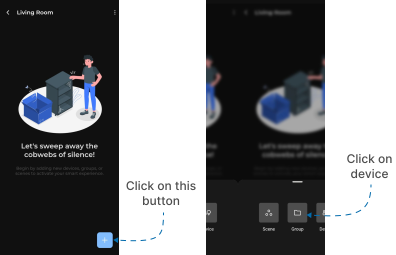
- Inside the room, tap the “+” (Add) button shown at bottom.
- A menu will appear. from that Select Device.
-
Open Install Screen
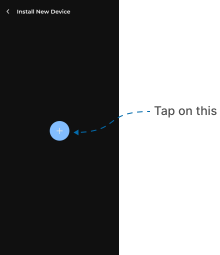
- The Install New Device screen will appear with a “+” (Add) button in the center.
- Tap on it.
-
Scanning for Devices
- The app will begin scanning for nearby compatible light devices.
-
View Available Devices
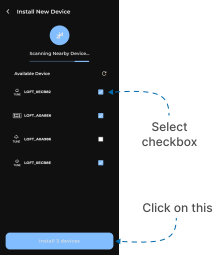
- If compatible light devices are found, they will be displayed under the Available Devices section.
-
Select Devices to Install
- The device in the list will have a checkbox on the right-hand side.
- Select the checkbox for the device(s) you want to install.
- Tap the Install Devices button at the bottom of the screen.
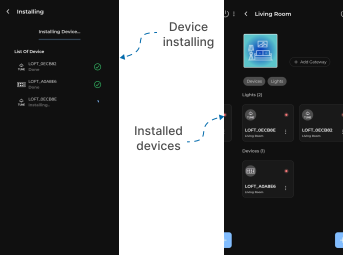
- Installation Process
- The Installing Devices process will begin.
- Once installation is complete, your Room screen will display the newly installed devices.
- Complete Light Setup
- To complete the setup of your light Click Here.
Notes
- Ensure your device is powered on and within range.
- Only compatible devices will appear in the Available Devices list.
Watch The Video Tutorial
Steps to Install Gateway Device
-
Open the Loft App
- Launch the app on your mobile/tablet device.
-
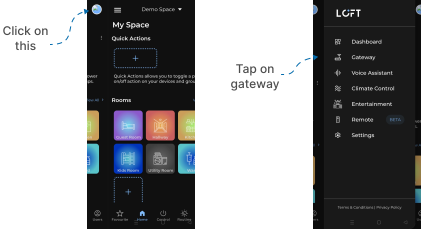
Navigate to Gateway Section
- Tap the side menu (hamburger icon) in the top-left corner.
- Select the Gateway option.
-
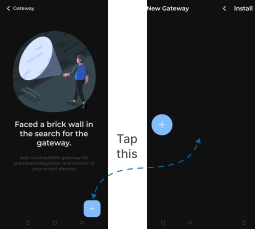
Add a New Gateway
- Tap the “+” (Add) icon at the bottom of the screen.
- Tap “+” again to start installing a new gateway.
-
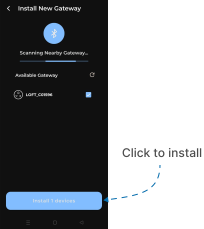
Scan for Gateway Devices
- The app will begin scanning for nearby gateways.
- Once scanning completes, available gateways will be listed under the Available Gateway section.
-
Select and Install Gateway
- From the list, select your Gateway device.
- Tap Install Device.
-
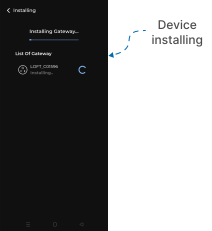
Installation Process
- An Installing Device screen will appear while your gateway is being install.
-
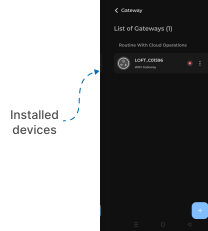
Gateway List Screen
- After installation, you’ll be redirected to the List of Gateways screen.
- Your newly installed gateway will appear here, marked with a red dot (indicating setup is pending).
-
Complete Gateway Setup
- To complete the setup of your gateway Click Here.
Notes
- A red dot beside the gateway name indicates that the setup is incomplete.
- Make sure your phone has a stable internet connection during installation.
Watch The Video Tutorial
Steps to Install Panel Device
-
Open the Loft App
- Navigate to the Rooms section.
-
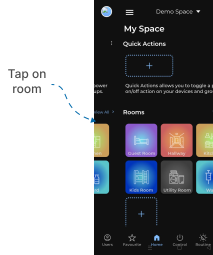
Select a Room
- Tap on the room where you want to install a panel device.
- Add a Device
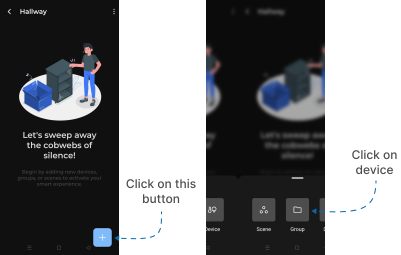
- Inside the room, tap the “+” (Add) button shown at bottom.
- A menu will appear. from that Select Device.
-
Open Install Screen
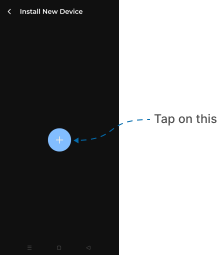
- The Install New Device screen will appear with a “+” (Add) button in the center.
- Tap on it.
-
Scanning for Devices
- The app will begin scanning for nearby compatible panel devices.
-
View Available Devices
- If compatible panel devices are found, they will be displayed under the Available Devices section.
-
Select Devices to Install
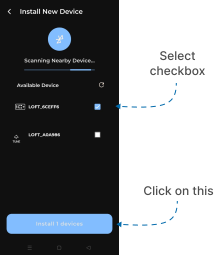
- The device in the list will have a checkbox on the right-hand side.
- Select the checkbox for the device(s) you want to install.
- Tap the Install Devices button at the bottom of the screen.
- Installation Process
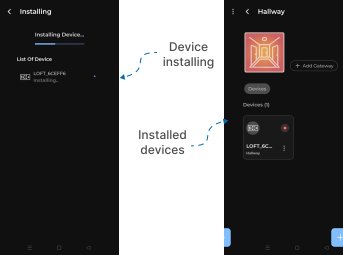
- The Installing Devices process will begin.
- Once installation is complete, your Room screen will display the newly installed devices.
- Complete Panel Setup
- To complete the setup of your panel Click Here.
Notes
- Ensure your device is powered on and within range.
- Only compatible devices will appear in the Available Devices list.
Watch The Video Tutorial
Steps to Install Sensor Device
-
Open the Loft App
- Navigate to the Rooms section.
-
Select a Room
- Tap on the room where you want to install a sensor device.
- Add a Device
- Inside the room, tap the “+” (Add) button shown at bottom.
- A menu will appear. from that Select Device.
-
Open Install Screen
- The Install New Device screen will appear with a “+” (Add) button in the center.
- Tap on it.
-
Scanning for Devices
- The app will begin scanning for nearby compatible sensor devices.
-
View Available Devices
- If compatible sensor devices are found, they will be displayed under the Available Devices section.
-
Select Devices to Install
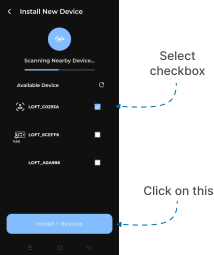
- The device in the list will have a checkbox on the right-hand side.
- Select the checkbox for the device(s) you want to install.
- Tap the Install Devices button at the bottom of the screen.
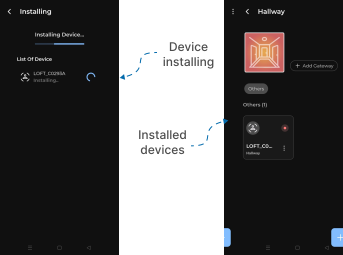
- Installation Process
- The Installing Devices process will begin.
- Once installation is complete, your Room screen will display the newly installed devices.
- Complete Sensor Setup
- To complete the setup of your sensor Click Here.
Notes
- Ensure your device is powered on and within range.
- Only compatible devices will appear in the Available Devices list.
Watch The Video Tutorial
Steps to Install Curtain Device
-
Open the Loft App
- Navigate to the Rooms section.
-
Select a Room
- Tap on the room where you want to install a curtain device.
- Add a Device
- Inside the room, tap the “+” (Add) button shown at bottom.
- A menu will appear. from that Select Device.
-
Open Install Screen
- The Install New Device screen will appear with a “+” (Add) button in the center.
- Tap on it.
-
Scanning for Devices
- The app will begin scanning for nearby compatible curtain devices.
-
View Available Devices
- If compatible curtain devices are found, they will be displayed under the Available Devices section.
-
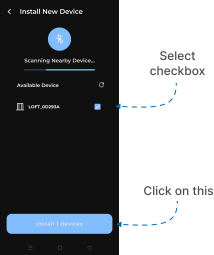
Select Devices to Install
- The device in the list will have a checkbox on the right-hand side.
- Select the checkbox for the device(s) you want to install.
- Tap the Install Devices button at the bottom of the screen.
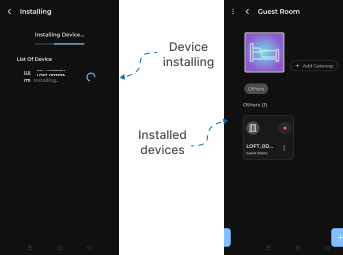
- Installation Process
- The Installing Devices process will begin.
- Once installation is complete, your Room screen will display the newly installed devices.
- Complete Curtain Setup
- To complete the setup of your curtain Click Here.
Notes
- Ensure your device is powered on and within range.
- Only compatible devices will appear in the Available Devices list.
Watch The Video Tutorial
Steps to Install Wired IR Device
-
Open the Loft App
-
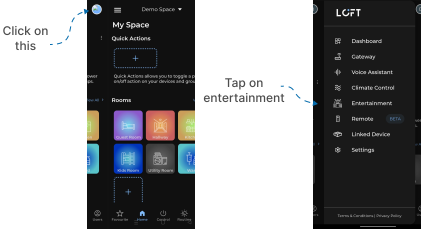
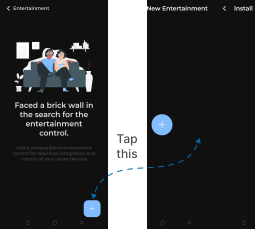
Go to Entertainment Section
- Tap the side menu (hamburger icon) in the top-left corner.
- Select the Entertainment option.
-
Add a New Entertainment Device
- Tap the “+” (Add) button at the bottom.
- Tap “+” again to install new entertainment.
-
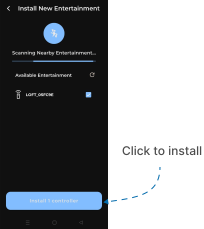
View Available Devices
- If compatible Wired IR devices are found, they will be displayed under the Available Devices section.
-
Select Devices to Install
- The device in the list will have a checkbox on the right-hand side.
- Select the checkbox for the device(s) you want to install.
- Tap the Install Devices button at the bottom of the screen.
-
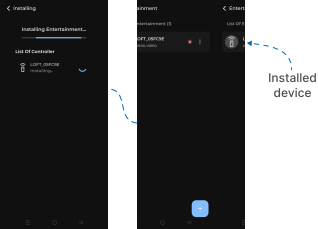
Installation Process
- The Installing Devices process will begin.
- Once installation is complete, in List of Entertainment screen will display the newly installed devices.
Notes
- Ensure your device is powered on and within range.
- Only compatible devices will appear in the Available Devices list.
Steps to Install Cool Master Device
-
Open the Loft App
-
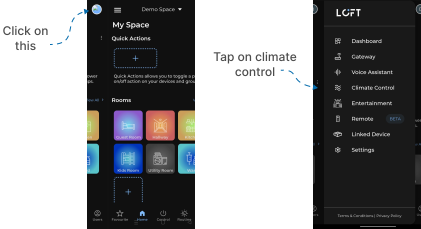
Go to Climate Control Section
- Tap the side menu (hamburger icon) in the top-left corner.
- Select the Climate Control option.
-
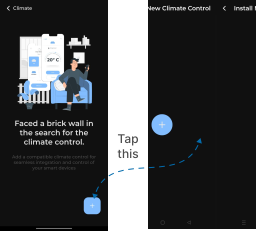
Add a New Climate Device
- Tap the “+” (Add) button at the bottom.
- Tap “+” again to install new Climate Control.
-
View Available Devices
- If compatible climate (cool master) devices are found, they will be displayed under the Available Devices section.
-
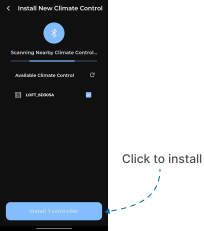
Select Devices to Install
- The device in the list will have a checkbox on the right-hand side.
- Select the checkbox for the device(s) you want to install.
- Tap the Install Devices button at the bottom of the screen.
-
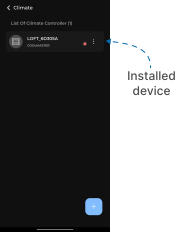
Installation Process
- The Installing Devices process will begin.
- Once installation is complete, in List of Climate Controller screen will display the newly installed devices.
Notes
- Ensure your device is powered on and within range.
- Only compatible devices will appear in the Available Devices list.
Watch The Video Tutorial
Steps to Install BLE Remote Device
-
Open the Loft App
-
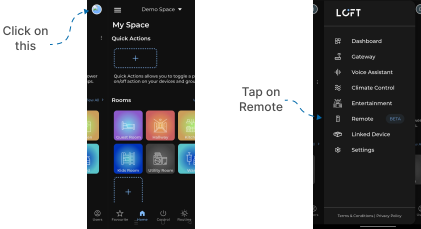
Go to Remote Section
- Tap the side menu (hamburger icon) in the top-left corner.
- Select the Remote option.
-
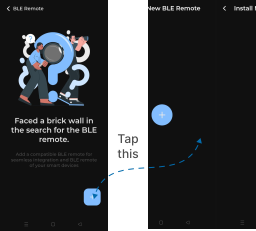
Add a New BLE Remote Device
- Tap the “+” (Add) button at the bottom.
- Tap “+” again to install new BLE Remote.
-
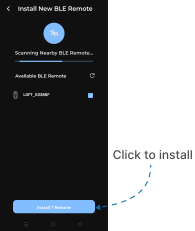
View Available Devices
- Note: Long press any button on your physical remote to make the BLE remote appear in the Available Devices list section. Otherwise, it will not show up.
-
Select Devices to Install
- The device in the list will have a checkbox on the right-hand side.
- Select the checkbox for the device(s) you want to install.
- Tap the Install Devices button at the bottom of the screen.
-
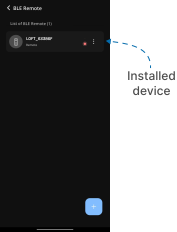
Installation Process
- The Installing Devices process will begin.
- Once installation is complete, in List of BLE Remote screen will display the newly installed devices.
Notes
- Ensure your device is powered on and within range.
- Only compatible devices will appear in the Available Devices list.
Watch The Video Tutorial
Steps to Install IR Blaster Device
-
Open the Loft App
- Navigate to the Rooms section.
-
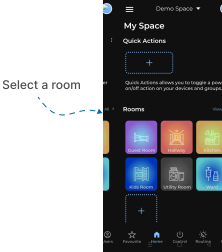
Select a Room
- Tap on the room where you want to install a IR Blaster device.
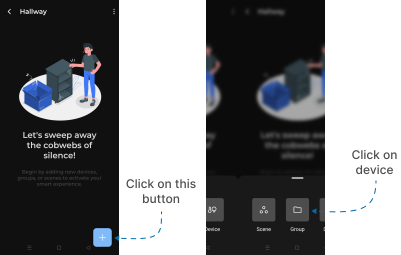
- Add a Device
- Inside the room, tap the “+” (Add) button shown at bottom.
- A menu will appear. from that Select Device.
-
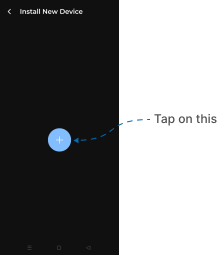
Open Install Screen
- The Install New Device screen will appear with a “+” (Add) button in the center.
- Tap on it.
-
Scanning for Devices
- The app will begin scanning for nearby compatible IR blaster devices.
-
View Available Devices
- If compatible ir blaster devices are found, they will be displayed under the Available Devices section.
-
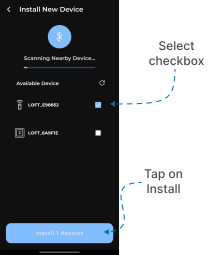
Select Devices to Install
- The device in the list will have a checkbox on the right-hand side.
- Select the checkbox for the device(s) you want to install.
- Tap the Install Devices button at the bottom of the screen.
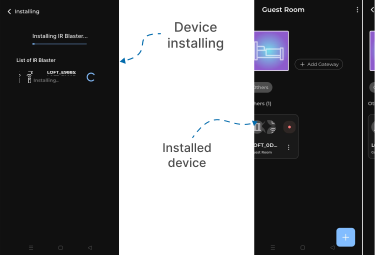
- Installation Process
- The Installing Devices process will begin.
- Once installation is complete, your Room screen will display the newly installed devices.
- Complete IR Blaster Setup
- To complete the setup of your IR blaster Click Here.
Notes
- Ensure your device is powered on and within range.
- Only compatible devices will appear in the Available Devices list.