Forgot Password
This guide explains how to reset your Loft App account password in case you’ve forgotten it. Follow the steps below to securely regain access to your account.
Note: This “Forgot Password” method can also be used if your account was created using Google or Apple sign-in.
Watch The Video Tutorial
Steps to Reset Your Password
-
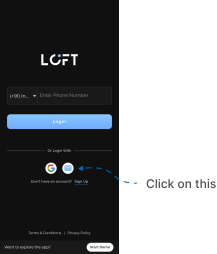
Open the Loft App.
- After the splash screen, the Login / Signup page appears.
-
Tap the Email icon option to continue with your registered email account.
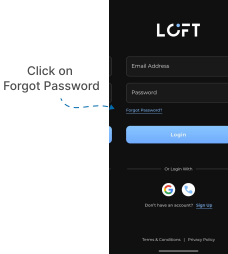
- On the login page, tap Forgot Password, located above the Login button.
-
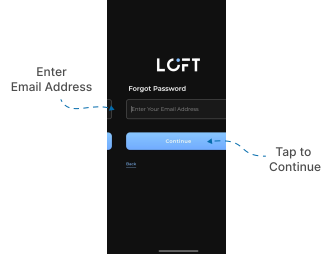
The Forgot Password screen appears with an email input field.
-
Enter the email address associated with your Loft account (the one you wish to reset the password for).
-
Tap Continue.
-
A password reset link will be sent to the provided email address.
Verify the Reset Email
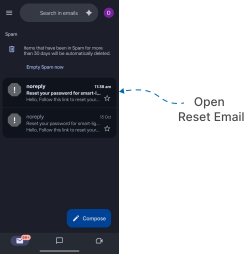
- Open your Gmail app (or any email app linked to your account).
- Locate the Reset your password email from Loft.
- Check your Inbox first.
- If not found, check the Spam or Important folders.
- Once you find the reset email, tap it to open.
- Then, tap the blue reset link to continue the password reset process.

Set a New Password
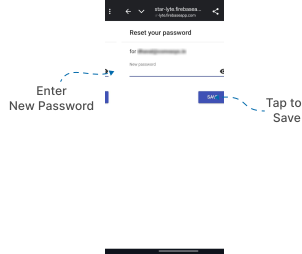
- After tapping the link, you’ll be redirected to the Reset Password screen.
- Enter your new password in the provided input field.
- Tap Save to confirm the change.
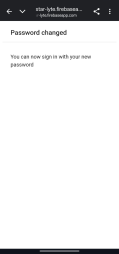
Once your password is successfully updated, a Password Changed confirmation screen will appear.
This indicates that your password has been reset successfully, and you can now sign in with your new password on the Loft App.
✅ You have successfully reset your Loft account password.
If you don’t receive the reset email, please verify your email address or try again after a few minutes.