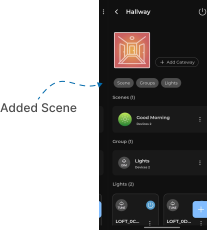
Add Scene
This guide explains how to Add Scene in the Loft App. This feature allows you to create predefined combination of light settings — such as brightness, color, and power state — that can be saved and activated instantly to create a specific mood or environment.
Watch The Video Tutorial
Steps to Add Scene
-
Open the Loft App
- Navigate to the Rooms section.
-
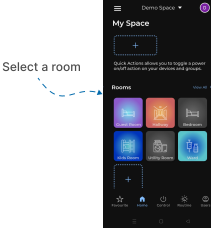
Select a Room
- Tap on the room where you want to Add Scene.
- Create a New Scene
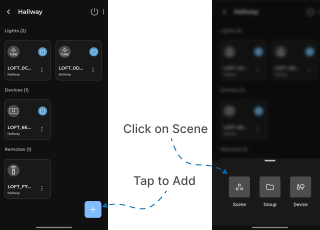
- Tap on the ‘+’ (Add) button at the bottom of the screen.
- A menu will appear — select Scene.
- Configure Scene Details
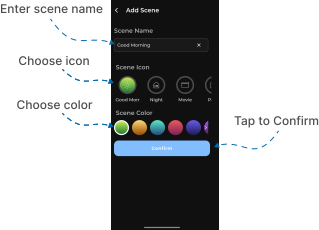
- The Add Scene screen will appear with input, icon and color selection options.
- Enter the Scene Name you want to set.
- Choose an Icon and Color for the Scene based on your preference, then tap Confirm.
- Add Devices to Scene
- The Scene Devices section will appear, allowing you to add devices by selecting different tabs.
- You can add multiple types of devices such as AC, Fan, Amplifier, CCT, Dimmer, Curtain, Projector, Presence Sensor, Lux Sensor, RGB, Switch, etc.
- Select the Checkbox next to each device or Adjust/Set the device settings then click on Add button.

- Save and Confirm
- Once you’ve added all your desired devices, return to the room.
- Your Scene will now be successfully created and displayed in the Scene Section.