Add Room
The Add Room feature in the LOFT application allows users to create and organize spaces for smart device management. This helps in better personalization and control of connected devices within specific rooms (e.g., Living Room, Bedroom, Kitchen).
Watch The Video Tutorial
Steps to Add a Room
-
Open the LOFT App
- Launch the application on your device.
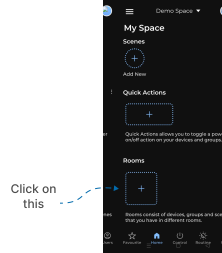
- Navigate to the Rooms section from the home screen.
-
Tap on the Add Icon
- In the Rooms section, tap the “+” (Add) icon to begin creating a new room.
-
Fill Room Details
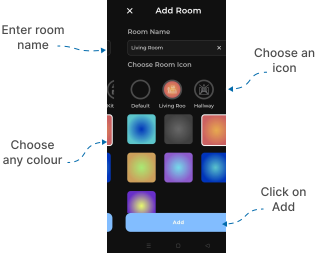
- On the Add Room screen:
- Enter Room Name: Provide a unique and descriptive name for the room (e.g., “Living Room,” “Office”).
- Choose an Icon: Select a representative icon for easier identification.
- Pick a Color: Assign a preferred color to visually differentiate the room.
- On the Add Room screen:
-
Save the Room
- Once the details are completed, tap the Add button located at the bottom of the screen.
- Confirmation
- Your newly created room will appear in the Rooms section, confirming that the room has been successfully added.
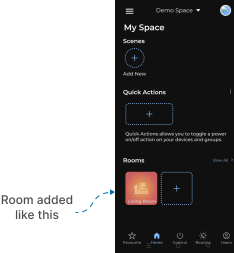
✅ Outcome: The room is now created and ready for adding devices or further customization.