IR Fan
This guide explains how to set up an IR Fan using the Loft App.
⚠️ Note: To set up a IR Fan, the device must already be installed. If don't know how to install a device so click here.
Watch The Video Tutorial
Steps to Setup Wired IR Fan
-
Open the Loft App
-
Go to Entertainment Section
- Tap the side menu (hamburger icon) in the top-left corner.
- Select the Entertainment option.
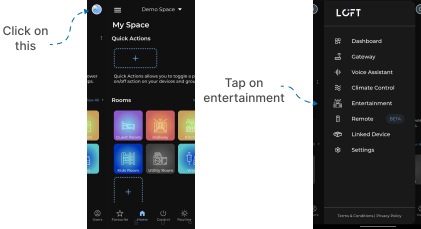
- Select Device in Entertainment List
- Installed device will appear in the entertainment list.
- Tap on it to proceed.
- Options like IR 1, IR 2, IR 3 will appear.
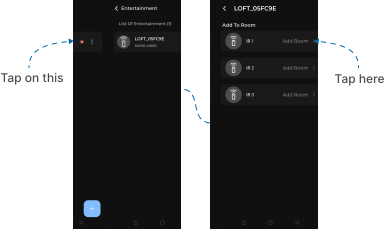
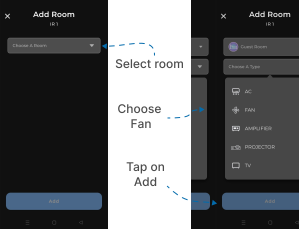
- Assign to a Room
- Tap on Add to Room.
- Select the room where you want to set up the IR Fan.
- From the device dropdown, choose FAN and tap Add.
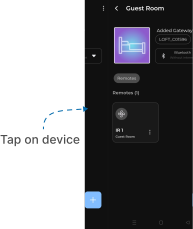
- Access the IR Device in Room
- Navigate to the selected room.
- Tap on the IR (Fan) device.
- Select Mode for Setup
- Two tabs will appear: Default and Others. You can choose either method which is compatible for you.
Default Tab
Watch The Video Tutorial
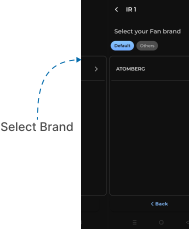
- Supported Fan brand list appears.
- Tap on your brand.
Others Tab
Watch The Video Tutorial
- If your compatible brand is not listed under Default, go to Others.
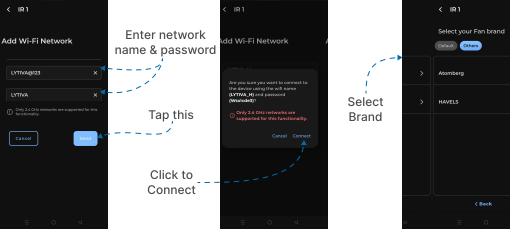
- A Wi-Fi network input screen appears.
- Enter:
- SSID (your Wi-Fi network name)
- Password (Wi-Fi password)
- Tap Send.
- But, Make Sure Only 2.4 GHz networks are supported for this functionality.
- An Confirmation popup will appears, click Connect.
- Select your brand from list.
- If you have everything properly setup and still not appearing the brand name make sure the IR device's blue light is turned on(connected to the internet).
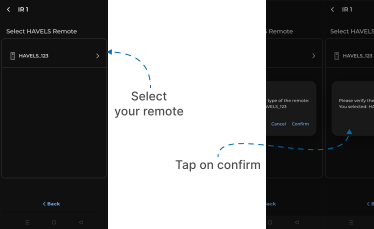
- After that select your model.
- Tap to Confirm.
- If no protocols are available, you may need additional devices such as a Global Cache IR Learner.
- For more details on how to setup Global Cache click here.
Setup Completed
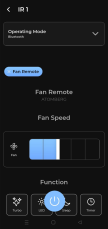
- Once configured using Default or Others method, your IR Fan remote interface will appear.
- You can now control your Fan via the Loft App.
Notes
- Ensure your Wired IR device is installed and powered on before starting setup.