Edit Device
This guide explains how to Edit Device using the Loft App.
⚠️ Keep in mind: To Edit Device, the device must already be installed. If don't know how to install a device so click here.
Watch The Video Tutorial
Steps to Edit Device
-
Open the Loft App
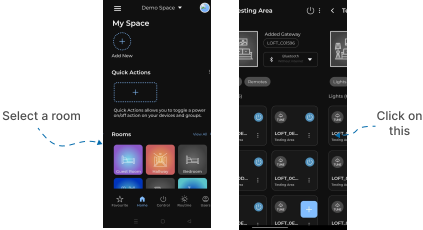
- Navigate to the Room where your Device is installed.
-
Locate the Device
- Locate the Device which you want to Edit and click on the three dots
⁝icon.
- Locate the Device which you want to Edit and click on the three dots
- Open Edit Menu
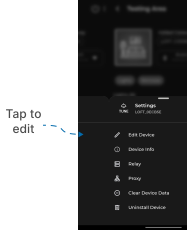
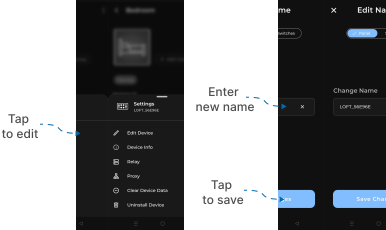
- A Settings Menu popup will appear with multiple options.
- Tap on Edit Device.
- Change Device Name
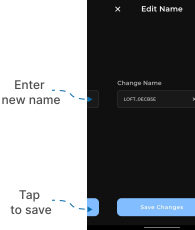
- A name input field will appear.
- Enter the new device name you want to set.
- Tap Save Changes to confirm.
- ✅ Your device is now successfully updated and will appear with the new name.
Additional Settings (For Panel Devices)
-
Access Panel Switch Settings
- If you’re editing a Panel Device, an additional “Switches” tab will appear when you tap Edit Device.
-
Change Device Name
- In Panel Tab A name input field will appear.
- Enter the new device name you want to set.
- Tap Save Changes to confirm.
- Edit Individual Switches
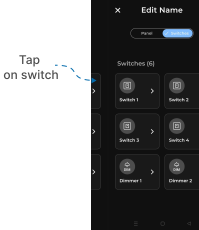
- In Switches Tab displays all individual panel switches.
- Tap on the switch you want to edit.
- The Edit Switch screen will open.
-
Customize Switch Name and Icon
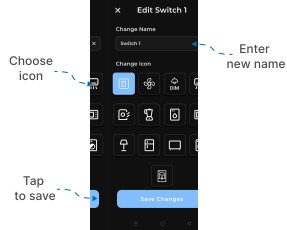
- Update the Switch Name as desired.
- Choose a suitable icon from the list of available options shown below.
-
Save Changes
- Tap Save Changes to confirm your updates.
- ✅ Your panel device is now successfully edited, showing the new switch names and updated icons.