IR AC
This guide explains how to set up a IR AC using the Loft App.
⚠️ Note: To set up a IR AC, the device must already be installed. If don't know how to install a device so click here.
Steps to Setup IR AC
-
Open the Loft App
- Navigate to the Rooms section.
-
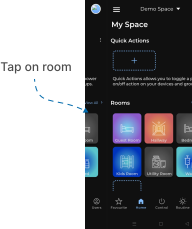
Select a Room
- Tap on the room where your IR AC is installed.
-
Locate the Device
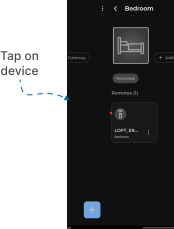
- Find the IR AC you want to set up.
- Devices pending setup are marked with a red dot.
-
Complete Setup
- Tap on the device to complete the setup.
- Select Your Device
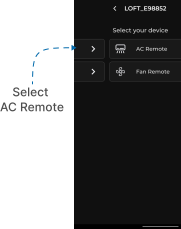
Two device options will appear:- AC Remote
- Fan Remote
- Tap on "AC Remote"
- Select Mode for Setup
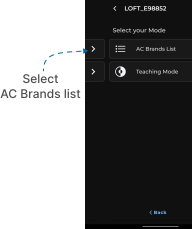
Two setup modes will appear:- AC Brand List Mode
- Teaching Mode
Option 1: AC Brand List Mode
- Tap AC Brand List Mode.
- Two tabs will appear: Default and Others.
Default Tab
Watch The Video Tutorial
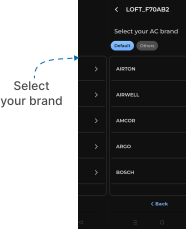
- Supported AC brand list appears.
- Tap on your brand.
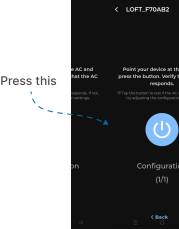
- Configuration screen appears.
- Point your IR device at the AC and press the Power button on the app to verify response.
- If verified, the AC Remote Interface will appear.
- If your compatible brand is not listed under Default, go to Others.
Others Tab
Watch The Video Tutorial
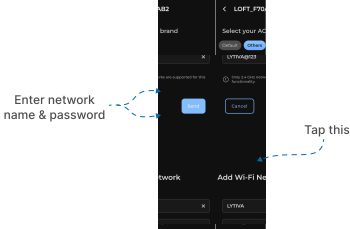
- A Wi-Fi network input screen appears.
- Enter:
- SSID (your Wi-Fi network name)
- Password (Wi-Fi password)
- Tap Send.
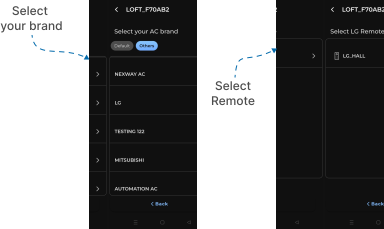
- An extended AC brands/protocol list may appear.
- Select your Compatible Brand from list.
- Then Select Remote
- If no protocols are available, you may need additional devices such as a Global Cache IR Learner.
- For more details on how to setup Global Cache click here.
Option 2: Teaching Mode
Watch The Video Tutorial
- Tap Teaching Mode.
- Turn on teaching mode by pressing the center Power button.

- Point your AC remote at the IR device.
- Press a button on your physical AC remote.
- Verify if the device responds.
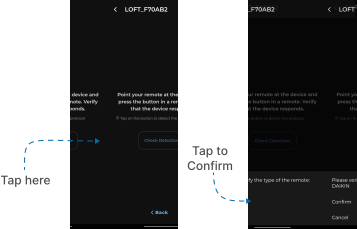
- Tap Check Detection.
- If verified, a confirmation popup appears → tap Confirm.
Setup Completed
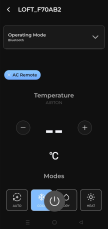
- Once configured using either method, your IR AC remote interface will appear.
- You can now control your AC via the Loft App.
Notes
- Ensure your Wired IR device is installed and powered on before starting setup.