Addressable RGB
This guide explains how to set up an Addressable RGB light using the Loft App.
⚠️ Keep in mind: To set up an Addressable RGB light, the device must already be installed. If don't know how to install a device so click here.
Watch The Video Tutorial
Steps to Setup Addressable RGB Light
-
Open the Loft App
- Navigate to the Rooms section.
-
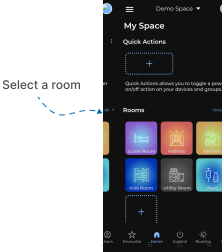
Select a Room
- Tap on the room where your Addressable RGB light is installed.
-
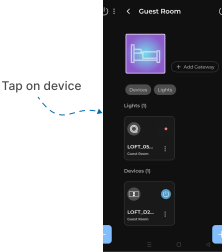
Locate the Device
- Find the Addressable RGB light you want to set up.
- Devices pending setup are marked with a red dot.
-
Start Setup
- Tap on the device to open the Blink from the Device setup screen.
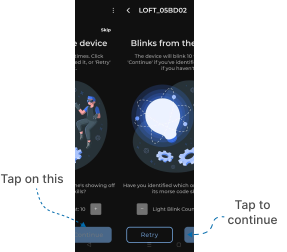
- Identify the Light by Blinking
- By default, the light will blink 10 times.
- Use the “-” and “+” buttons to adjust the blink count as needed.
- Tap Retry to make the light blink again until you can easily identify it.
- Once you confirm the correct device, tap Continue.
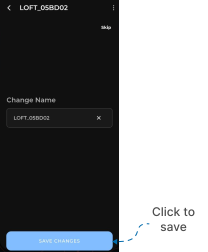
- Change Device Name
- The Change Name screen will appear.
- Enter a custom name for your Addressable RGB light or keep the default name.
- Tap Save Changes to proceed.
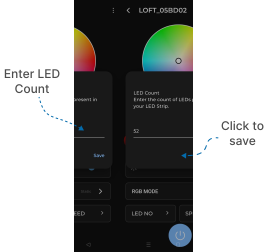
- Set LED Count
- The LED Count popup will appear.
- Enter the number of LEDs present in your LED strip.
- Tap Save to confirm.
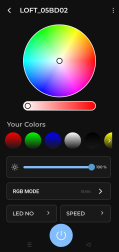
- Setup Completed
- Your Addressable RGB light is now fully set up and ready to use.
Notes
- Make sure your light is powered on during setup.
- Entering the correct LED count is essential for proper functioning.
- You can update the device name or LED count later in Device Settings.