Lux(Daylight) Sensor
This guide explains how to set up a Lux Sensor using the Loft App.
⚠️ Keep in mind: To set up a Lux Sensor, the device must already be installed. If don't know how to install a device so click here.
Watch The Video Tutorial
Steps to Setup Lux Sensor
-
Open the Loft App
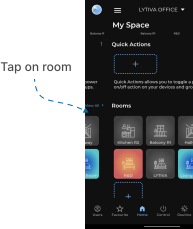
- Navigate to the Rooms section.
-
Select a Room
- Tap on the room where your Lux Sensor is installed.
-
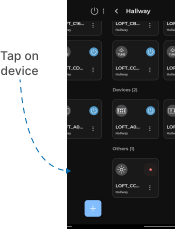
Locate the Device
- Find the Lux Sensor you want to set up.
- Devices pending setup are marked with a red dot.
-
Start Setup
- Tap on the Daylight Sensor Device to begin setup.
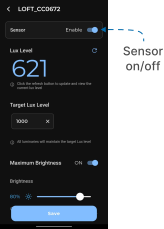
- Enable/Disable Sensor
- Use the Sensor Enable/Disable Toggle to turn the daylight sensor ON or OFF.
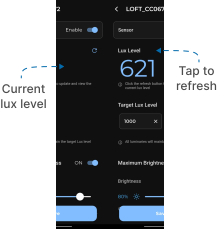
- View Lux Level Reading
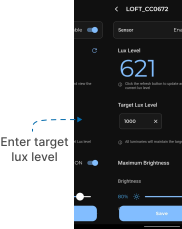
- The current Lux Level Reading will be displayed.
- Tap the Refresh icon to update the reading.
- Set Target Lux Level
- Define your desired Target Lux Level (e.g.,
1000 lux) to maintain a specific brightness level in the room.
- Define your desired Target Lux Level (e.g.,
-
Brightness Control Settings
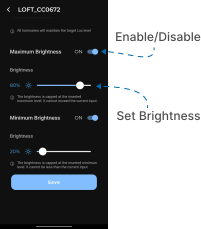
-- A. Maximum Brightness Control
- Enable Toggle Button → Set Maximum Brightness (e.g.,
80%).- If lux level is below target, lights will increase up to the set brightness.
- Disable Toggle Button → Lights will go up to 100% brightness regardless of lux level.
- Enable Toggle Button → Set Maximum Brightness (e.g.,
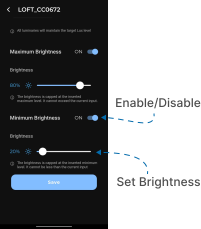
-- B. Minimum Brightness Control
- Enable Toggle Button → Set Minimum Brightness (e.g.,
20%).- If lux level is above target, lights will reduce to the set brightness.
- Disable Toggle Button → Lights will turn off (0%) when sufficient daylight is available.
- Save Settings
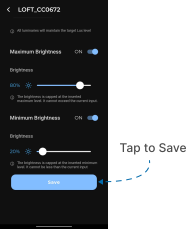
- After adjusting configurations, tap Save.
- Room lights will now automatically adjust based on the configured lux level and brightness settings.
Notes
- Ensure the sensor placement allows it to detect natural daylight accurately.
- The red dot will disappear once setup is successfully completed.