Presence Sensor
This guide explains how to set up a Presence Sensor using the Loft App.
⚠️ Keep in mind: To set up a Presence Sensor, the device must already be installed. If don't know how to install a device so click here.
Watch The Video Tutorial
Steps to Setup Presence Sensor
-
Open the Loft App
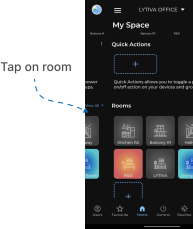
- Navigate to the Rooms section.
-
Select a Room
- Tap on the room where your Presence Sensor is installed.
-
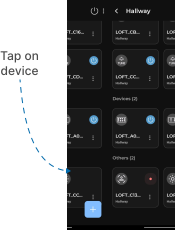
Locate the Device
- Find the Presence Sensor you want to set up.
- Devices pending setup are marked with a red dot.
-
Start Setup
- Tap on the Presence Sensor Device to begin setup.
- Enable/Disable Sensor
- Use the Sensor Enable/Disable Toggle to turn the presence sensor ON or OFF.
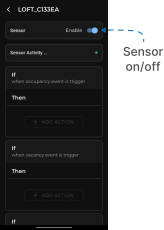
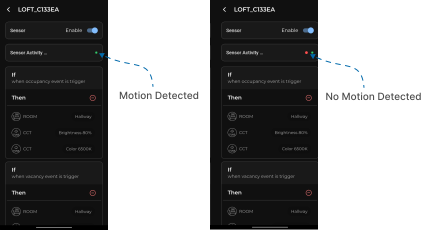
- Motion Detection Indicators
- Green Dot → Motion detected.
- Red Dot → No motion detected.
-
Set Actions for Presence Sensor
The sensor supports 3 actions that trigger automatically based on whether people are in the room or not.- Action 1 – When Motion is Detected (Occupancy Detected)
-
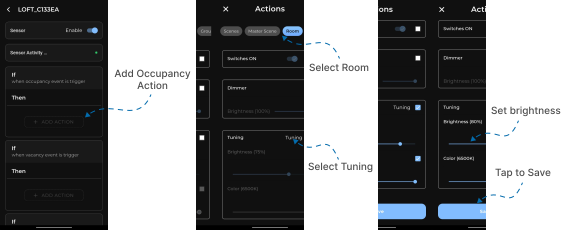
Example: When someone enters the room, lights turn ON at 80% brightness.
-
How:
-Tap "+ ADD ACTION" in Action 1.
-Select Room.
-Choose Lights → Set Brightness = 80%.
-Tap to Save.
-
You can also link this action to a Master Scene, Scene, Group, Room, or Device instead of just lights.
-
- Action 1 – When Motion is Detected (Occupancy Detected)
- Action 2 – When No Motion is Detected (First Stage)
-
Example: If no motion is detected after the set time, lights will dim to 20%.
-
How:
-Tap "+ ADD ACTION" in Action 2.
-Select Room.
-Choose Lights → Set Brightness = 20%.
-Tap to Save.
-
This creates a "standby" mode before turning lights completely OFF.
-
You can also link this action to a Master Scene, Scene, Group, Room, or Device instead of just lights.
-

- Action 3 – When No Motion Continues (Second Stage)
-
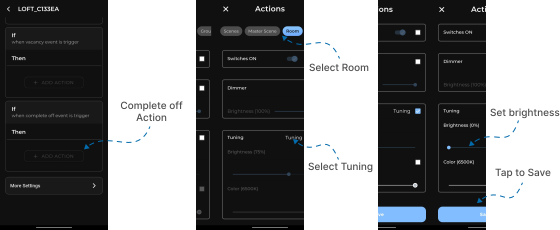
Example: If the room stays empty even longer, lights will turn OFF (0%).
-
How:
-Tap "+ ADD ACTION" in Action 3.
-Select Room.
-Choose Lights → Set Brightness = 0%.
-Tap to Save.
-
You can also configure this stage to trigger a Master Scene, Scene, Group, Room, or Device.
-
👉 In short:
- Action 1 = Turn lights ON when someone enters.
- Action 2 = Dim lights when no one is there for a while.
- Action 3 = Turn lights OFF if no one comes back.
- Additional Sensor Settings
Fine-tune how the Presence Sensor behaves using these options:
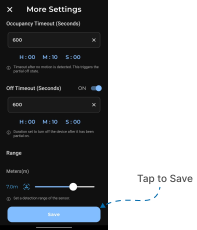
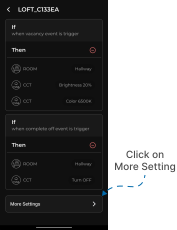
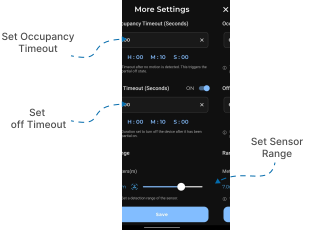
Tap on More Settings to set additional settings.
-
Occupancy Timeout → How long the sensor waits before confirming someone is in the room.
- Example: Set to
1 minute→ the sensor will confirm occupancy only if motion is detected for at least 1 minute.
- Example: Set to
-
Off Timeout → How long the lights stay ON after no motion is detected.
- Example: Set to
1 minute→ lights will remain ON for 1 minutes before following Action 2 or Action 3.
- Example: Set to
-
Sensor Range → The distance at which the sensor detects motion. Adjustable between 0.7 meters to 10.5 meters.
- Example: For a small bedroom, set to 3m. For a large living room, set to 8–10m.
- Save Settings
- After making all adjustments, tap Save.
- The Presence Sensor will now actively monitor occupancy and control room lights based on your configurations.