BLE Remote
This guide explains how to set up an BLE Remote using the Loft App.
⚠️ Note: To set up a BLE Remote, the device must already be installed. If don't know how to install a device so click here.
Watch The Video Tutorial
Steps to Setup BLE Remote
-
Open the Loft App
-
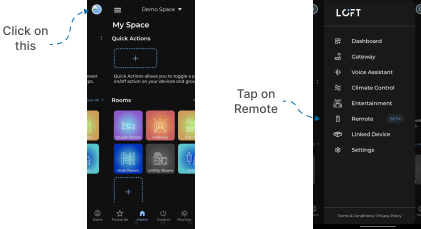
Go to Remote Section
- Tap the side menu (hamburger icon) in the top-left corner.
- Select the Remote option.
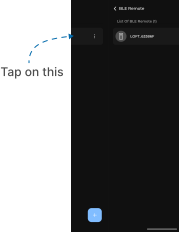
- Select Device in BLE Remote List
- Installed device will appear in the Remote list.
- Tap on it to proceed.
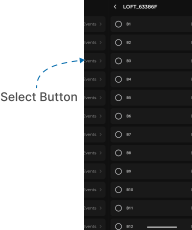
- Choose Button to Configure
- Select the button you want to configure from the available button list.
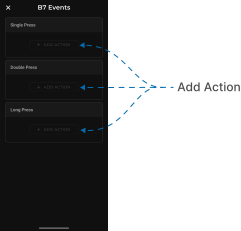
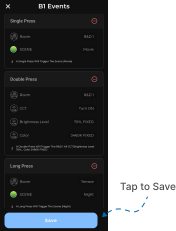
- Set Switch Event
- Choose the type of button press:
- Single Press
- Double Press
- Long Press
- Choose the type of button press:
-
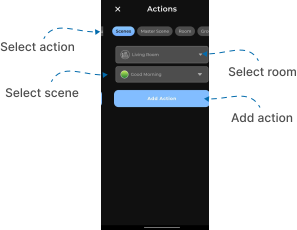
Assign Action Type
- Select the type of action to be triggered:
- Master Scene
- Scene
- Group
- Room
- Device
- Select the type of action to be triggered:
-
Choose Room & Action
- Tap Choose Room to select the desired room.
- Select the specific Master Scene, Scene, Group, or Device you want to assign to the button.
-
Add Action
- Tap Add Action to confirm and add the configuration.
- Save Configuration (Important Step)
- After assigning an action, perform the special saving process:
- Long press the corresponding button on the BLE Remote.
- At the same time, tap the Save button in the Loft App.
- ⚠️ This must be repeated individually for each event type (Single Press, Double Press, Long Press).
- After assigning an action, perform the special saving process:
- Usage
- Once configured, the BLE Remote can trigger assigned actions directly.
- You can control Scenes, Groups, Rooms, or Devices without opening the app.
✅ Your BLE Remote is now successfully set up and ready to use.