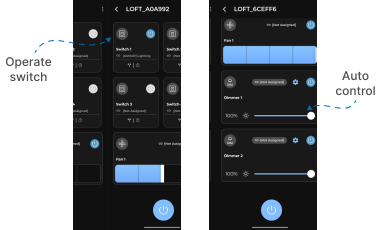
Switch Assigned to Group
This guide explains how to setup Switch Assigned to Group using the Loft App.
⚠️ Note: To set up a Switch Assigned to Group, requires: 1. Touch Panel 2. Group and ensure both are properly configured in the Loft App before starting the setup.
Watch The Video Tutorial
Steps to Setup Switch Assigned to Group
-
Open the Loft App
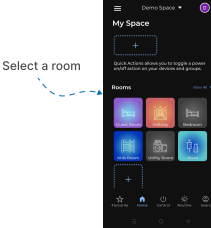
- Navigate to the Rooms section.
-
Select a Room
- Tap on the room from where you want to setup Switch Assigned to Group.
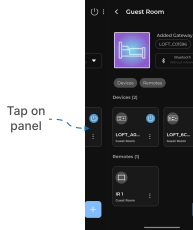
- Locate the Device
- Find the Touch Panel, Tap it to proceed setup.
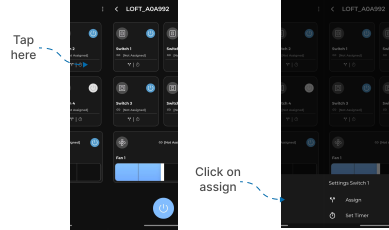
- Open the Panel Operation Section
- Locate the Switch you want to setup first.
- Tap below “Not Assigned” (this indicates no switch is currently linked).
- Switch Settings popup menu appears.
- Tap on Assign.
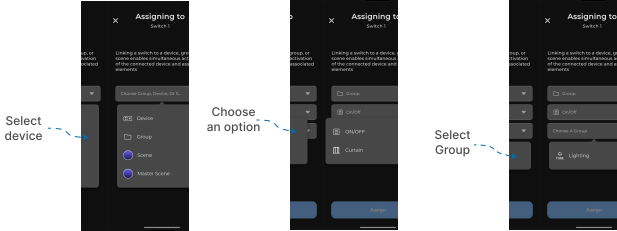
- Assign Group
- An Assigning Screen will appear.
- From the first dropdown, select Type: Group.
- From the second dropdown, choose the ON/OFF or Curtain based on which device to control from Group.
- ON/OFF: You can toggle Lights On or Off.
- Curtain: You can choose to operate curtain Open or Close.
- From the final dropdown, select your Group.
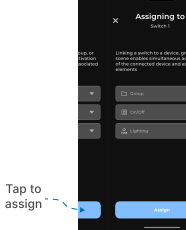
- Complete the Assignment
- Tap on the “Assign” button.
- Wait a few seconds for the configuration to complete.
- Switch Assigned to Group Setup Complete
- Once assigned, your Switch Assigned to Group setup is successfully established.
- Now, when you control the switch from touch panel, the Group Devices will automatically operates in real-time.