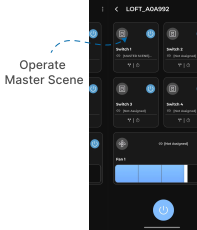
Switch Assigned to Master Scene
This guide explains how to setup Switch Assigned to Master Scene using the Loft App.
⚠️ Note: To set up a Switch Assigned to Master Scene, requires: 1. Touch Panel 2. Master Scene and ensure both are properly configured in the Loft App before starting the setup.
Watch The Video Tutorial
Steps to Setup Switch Assigned to Master Scene
-
Open the Loft App
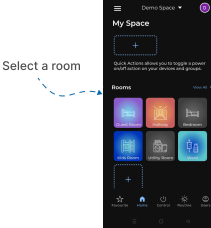
- Navigate to the Rooms section.
-
Select a Room
- Tap on the room from where you want to setup Switch Assigned to Master Scene.
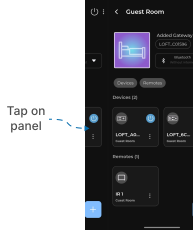
- Locate the Device
- Find the Touch Panel, Tap it to proceed setup.
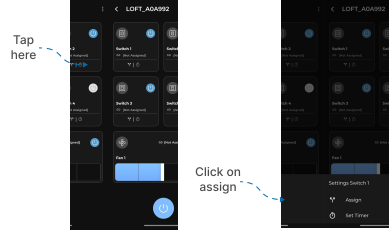
- Open the Panel Operation Section
- Locate the Switch you want to setup first.
- Tap below “Not Assigned” (this indicates no switch is currently linked).
- Switch Settings popup menu appears.
- Tap on Assign.
- Assign Master Scene
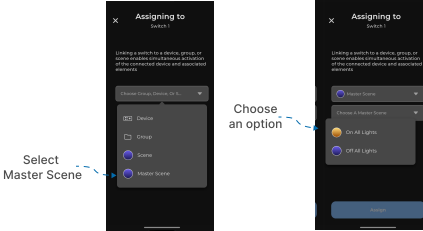
- An Assigning Screen will appear.
- From the first dropdown, select Type: Master Scene.
- From the second dropdown, select your Master Scene.
- Complete the Assignment
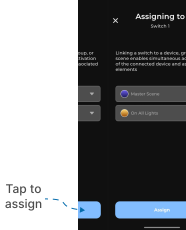
- Tap on the “Assign” button.
- Wait a few seconds for the configuration to complete.
- Switch Assigned to Master Scene Setup Complete
- Once assigned, your Switch Assigned to Master Scene setup is successfully established.
- Now, when you control the switch from touch panel, the Master Scene Devices will automatically operates in real-time.