Connection
This guide provides detailed troubleshooting steps to resolve Device Connection and Network Connection issues in the Loft App.
These issues may prevent smart devices from pairing successfully, staying online, or communicating properly with the Loft Ecosystem, Loft App, or cloud server — leading to unresponsive controls or setup failures.
- Device
- Network
Device Connection
The Device Connection Troubleshooting section helps diagnose and fix problems when an individual device fails to connect, disconnects frequently, or becomes unresponsive within the Loft App.
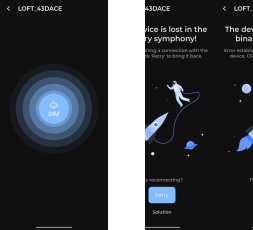
1. Range Issues
Possible Cause:
- The device is too far from where you trying to reach, resulting in weak signal strength.
- Signal interference from surrounding walls or electronic devices.
Solutions:
- Ensure there are minimal obstructions (e.g., concrete walls, metal barriers) between the device and the app control.
- Avoid placing devices near signal interference sources like microwaves, cordless phones, or elevators.
2. Particular Device Reset
Possible Cause:
- The device was recently reset, which removed its prior configuration or pairing details.
- After a reset, the device returns to factory mode and must be re-added.
Solutions:
- Open the Loft App → Devices section → Add Device.
- Put the device into pairing mode again.
- Follow the in-app steps to reconnect the device.
- Verify that the device reappears in the Loft App after successful pairing.
3. Device Power ON Mandatory
Possible Cause:
- The device is not powered on, leading to no communication or detection by the gateway.
Solutions:
- Check if the device is receiving power.
- Ensure the connected socket or switch is functioning properly.
- Reboot the device by turning it OFF and ON once.
4. Phone Issues (Bluetooth Connectivity)
Possible Causes:
- Bluetooth on your phone is already connected to multiple other devices (e.g., headset, speaker, smartwatch).
- Limited Bluetooth pairing capacity on Android or iOS devices.
- Bluetooth permissions or connection conflicts may interrupt the configuration process.
Solutions:
- Turn off and then turn on Bluetooth before starting configuration.
- Disconnect or unpair unnecessary Bluetooth devices from your phone.
- Restart your phone and reopen the Loft App.
- Make sure Bluetooth permission is enabled for the Loft App in your phone’s settings.
📱 For more detailed Bluetooth troubleshooting:
- Click here for Android devices.
- Click here for iOS devices.
5. Deployment or Environment Issues
Possible Cause:
- Thick walls, metal surfaces, or closed enclosures may block or weaken device signals.
- Installation near elevators or high-frequency equipment (e.g., microwaves) can disrupt communication.
Solutions:
- Reposition the device in an open area.
- Avoid placing it near high-interference sources.
- Consider using a range extender or additional gateway to improve coverage in large spaces.
6. Configuration Issues
Possible Cause:
- Incorrect device configuration or mismatch between device.
Solutions:
- Revisit the setup process to confirm correct pairing steps.
- Delete and re-add the device if persistent issues occur.
- For more guidance, refer to the Troubleshoot Device guide.
Network Connection
The Network Connection Troubleshooting section helps resolve Mesh Network and cloud communication problems that prevent all devices from syncing or responding properly in the Loft App.
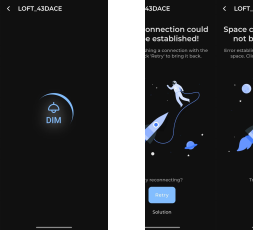
1. Range Issues
Possible Cause:
- The router signal is weak or devices are too far from the connectivity source.
Solutions:
- Move closer and retry to the affected devices.
- Reduce obstructions and avoid signal-heavy areas.
2. All Devices Reset
Possible Cause:
- All connected devices were factory reset, removing network configuration data.
Solutions:
- Re-add each device manually using the Add Device option in the Loft App.
- Ensure devices are in pairing mode before setup.
- Verify that each device appears online after setup.
3. All Devices Power ON Mandatory
Possible Cause:
- Some or all devices are powered off, resulting in communication failure across the system.
Solutions:
- Confirm all devices are powered ON.
- Check if indicator lights are active.
- Restart the main power if necessary.
4. Phone Issues (Bluetooth Connectivity)
Possible Causes:
- Bluetooth on your phone is already connected to multiple other devices (e.g., headset, speaker, smartwatch).
- Limited Bluetooth pairing capacity on Android or iOS devices.
- Bluetooth permissions or connection conflicts may interrupt the configuration process.
Solutions:
- Turn off and then turn on Bluetooth before starting configuration.
- Disconnect or unpair unnecessary Bluetooth devices from your phone.
- Restart your phone and reopen the Loft App.
- Make sure Bluetooth permission is enabled for the Loft App in your phone’s settings.
📱 For more detailed Bluetooth troubleshooting:
- Click here for Android devices.
- Click here for iOS devices.
5. Deployment or Environment Issues
Possible Cause:
- Mesh signal interference or poor coverage due to thick walls, metallic obstructions, or network congestion.
Solutions:
- Avoid placing devices near heavy electrical devices or enclosed cabinets.
- Maintain clear line-of-sight between the devices and app control.
6. Configuration Issues
Possible Cause:
- Outdated configuration in the Loft App.
Solutions:
- If still issues persist, refer to the Troubleshoot Device guide.
✅ Note:
Proper device and network configuration ensures stable communication between your Loft App, devices, and cloud server.