Bluetooth Troubleshooting
This guide explains how to clear Bluetooth app cache and reset Bluetooth settings on your device to ensure your devices properly connect and operate in the Loft App without connectivity issues.
Sometimes, due to app cache buildup or multiple Bluetooth pairings, your device may not connect properly. Follow the troubleshooting steps below to fix such Bluetooth connectivity problems.
For Android Devices
Steps to Clear Bluetooth App Cache
- Open Settings on your device.
- Go to Apps > App Management — you will see a list of all installed apps.
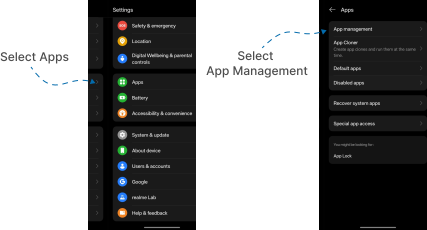
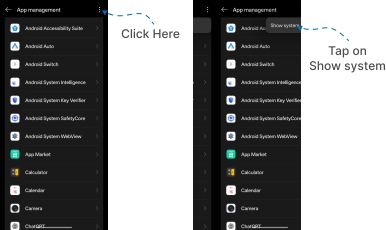
- Tap the three dots (⋮) in the top-right corner and select Show System.
(If system apps are already visible, you can skip this step.)
- Find and tap on Bluetooth.
- Select Storage Usage (or Storage & Cache).
- Tap Clear Cache under the cache section.
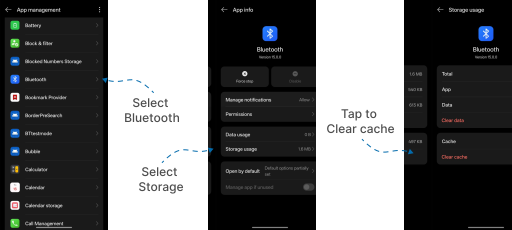
✅ The Bluetooth app cache is now cleared.
Steps to Reset Bluetooth Settings
- Open Settings on your device.
- Scroll down and select System.
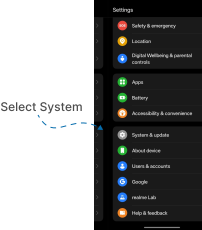
- Tap on Backup & Reset > Reset phone.
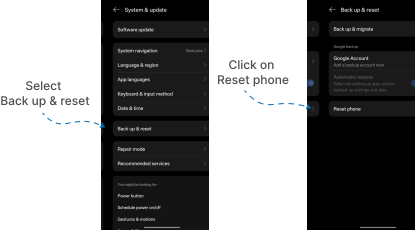
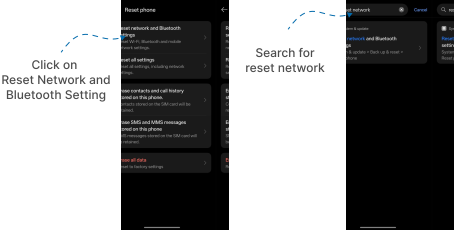
- Select Reset Network and Bluetooth Settings (this includes Wi-Fi, mobile, and Bluetooth).
- If you don't find this option, you can also use the search bar in Settings and go to Reset Network and Bluetooth Settings.
- A confirmation popup will appear — tap Reset to confirm.
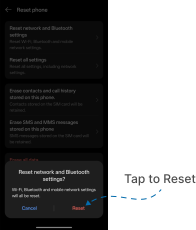
✅ Your Bluetooth network settings have now been reset.
After performing the above steps, your Bluetooth connectivity should be fixed, and you can properly access your devices in the Loft App without issues.
For iOS Devices
Steps to Reset Bluetooth Settings
- Open Settings on your iPhone.
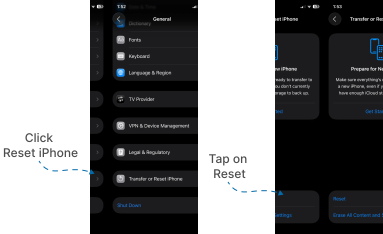
- Go to General.
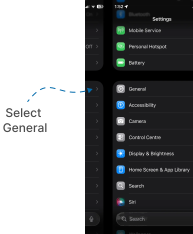
- Scroll down and tap on Transfer or Reset iPhone.
- Tap Reset.
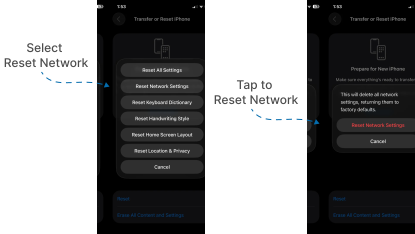
- From the list of options, select Reset Network Settings.
- A confirmation popup will appear — tap Reset Network Settings again to confirm.
✅ Your Bluetooth network settings have now been reset.
After completing the above steps, your Bluetooth connectivity should be restored, and devices will connect and function properly within the Loft App.
Note:
- Resetting network settings will also remove saved Wi-Fi networks and paired Bluetooth devices. You’ll need to reconnect them manually after the reset.
- Always ensure Bluetooth permissions are enabled for the Loft App in your phone’s settings.