Edit Scene
This guide explains how to Edit Scene in the Loft App. This feature allows you to Edit an existing Scene.
Watch The Video Tutorial
Steps to Edit Scene
-
Open the Loft App
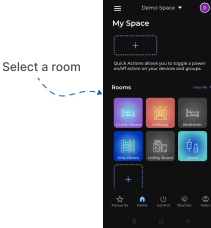
- Navigate to the Rooms section.
-
Select a Room
- Tap on the room where you want to Edit Scene.
- Edit the Scene
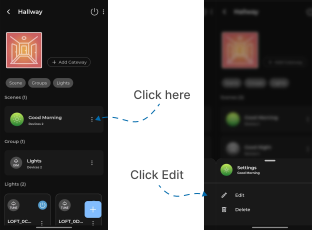
- In the Scene Section, your existing created Scenes will be displayed.
- Tap on the three dots (
⁝) icon located on the right side of the Scene you want to Edit. - A popup menu will appear — select Edit.
- Update Scene Settings
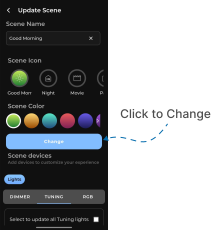
- The Update Scene screen will appear.
- You can change the Scene name or select a new Scene icon and color.
- From the Scene Devices section, you can change the device settings, remove existing devices or add new devices to the Scene.
- After making the desired changes, tap Change.
- Go back to the room, Your Scene will now reflect the updated name, icon, color, and device configuration.