Scene Panel
This guide explains how to setup Scene Mode in Scene Panel using the Loft App.
⚠️ Note: To set up a Scene Mode, ensure that Scene Panel is properly configured in the Loft App.
Steps to Setup Scene Mode
-
Open the Loft App
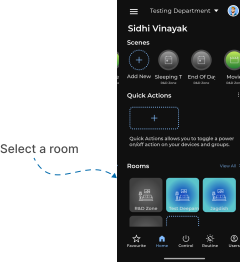
- Navigate to the Rooms section.
-
Select a Room
- Tap on the room from where you want to setup Scene Mode.
- Locate the Device
- Find the Scene Panel Device, Tap it to proceed setup.
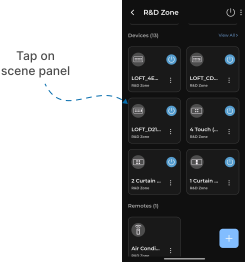
- Scene Panel Interface
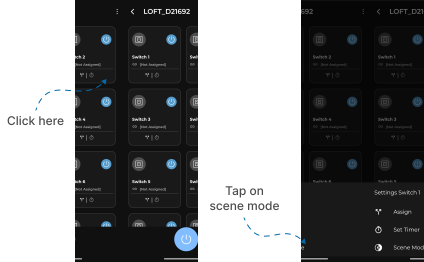
- Locate the Switch you want to setup.
- Tap on "Timer Icon"
- Switch Settings popup menu appears.
- Tap on Scene Mode.
-
Scene Mode Screen
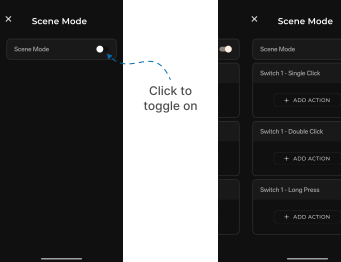
- Scene Mode screen appears.
⚠️ Keep in mind:
- If the switch is already assigned somewhere (e.g. Group, Scene, Two way), Scene Mode should not be activated on it.
- If Scene Mode is activated on a switch, that switch can no longer be assigned to a Group, Scene, Two way, etc.
-
Enable Scene Mode
- By default, the toggle at the top is disabled.
- Tap on the toggle to enable Scene Mode.
- Three options appear for the switch:
- Single Click – the assigned action executes on the panel when the switch is single clicked.
- Double Click – the assigned action executes on the panel when the switch is double clicked.
- Long Press – the assigned action executes on the panel when the switch is long pressed.
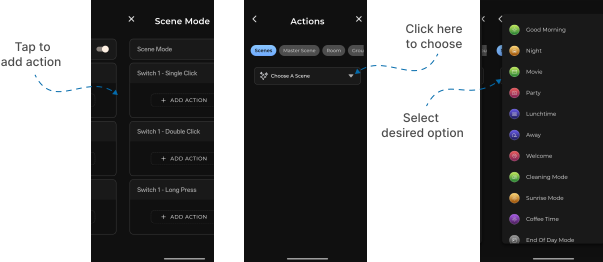
- Choose an Action
- Tap on "+ Add Action" under the option (Single Click, Double Click, or Long Press) you want to assign.
- Actions screen appears with type chips: Scenes, Master Scene, Room, Groups, and Device.
- Select a type, then tap the dropdown to choose the specific item (e.g. a scene) from the list.
- If you choose Room, Groups, or Device, the control-action options shown will vary based on the selected device type.
- Assign the Action
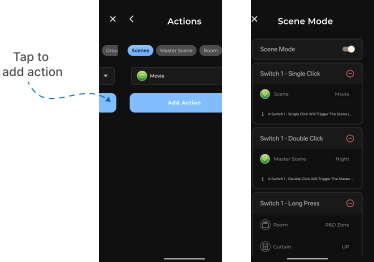
- After selecting the desired action, tap on Add Action.
- The action is assigned to that option, and appears listed under the switch on the Scene Mode screen.
- Repeat the same to assign actions to the remaining options as needed.
- Execute the Assigned Actions
- On the Scene Panel, single click, double click, or long press the assigned switch to perform the corresponding action.