Edit Room
The Edit Room feature in the LOFT application allows users to update an existing room’s details such as its name, icon, and color. This ensures rooms remain flexible and customizable based on user needs.
There are two ways to locate the Edit Room option:
Watch The Video Tutorial
Option 1: Edit from Inside the Room
-
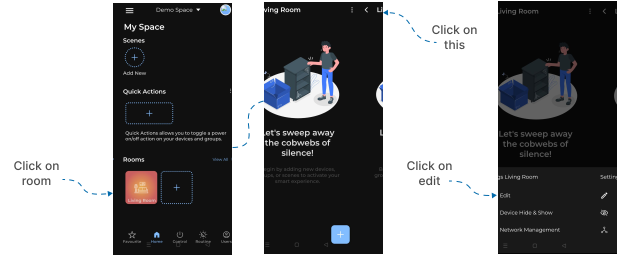
Open the LOFT App
- Launch the application and go to the Rooms section.
-
Select a Room
- Tap on the room you wish to edit.
-
Open More Options
- On the top-right corner, tap the More Options (3 dots) icon.
-
Select Edit
- From the settings popup menu, tap Edit.
-
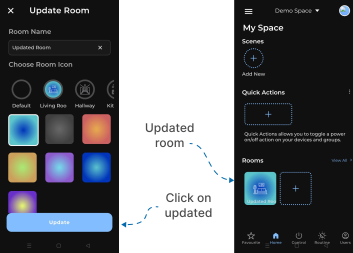
Update Room Details
- On the Update Room screen, modify one or more of the following:
- Room Name
- Icon
- Color
- On the Update Room screen, modify one or more of the following:
-
Save Changes
- Tap the Update button at the bottom of the screen.
-
Confirmation
- You will be redirected to the Home screen.
- In the Rooms section, the updated room will now reflect your changes.
Option 2: Edit from View All Rooms
-
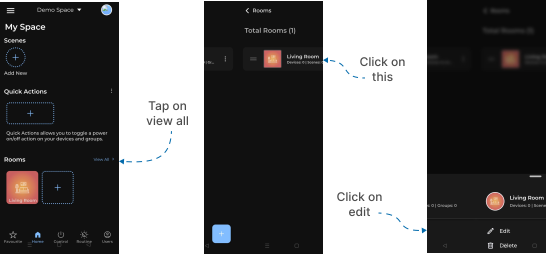
Open the LOFT App
- Launch the application and go to the Rooms section.
-
Access All Rooms
- On the right-hand side, tap View All.
- You will be redirected to the All Rooms screen.
-
Open Room Options
- Locate the room you want to edit.
- Tap the More Options (3 dots) icon next to it.
-
Select Edit
- From the action popup, tap Edit.
-
Update Room Details
- On the Update Room screen, modify one or more of the following:
- Room Name
- Icon
- Color
- On the Update Room screen, modify one or more of the following:
-
Save Changes
- Tap the Update button at the bottom of the screen.
-
Confirmation
- You will be redirected to the Home screen.
- In the Rooms section, the updated room will now reflect your changes.
✅ Outcome: The selected room is successfully updated with the new details provided.