Delete Room
The Delete Room feature in the LOFT application allows users to permanently remove a room which is no longer required.
Watch The Video Tutorial
Steps to Delete a Room
-
Open the LOFT App
- Launch the application and navigate to the Rooms section.
-
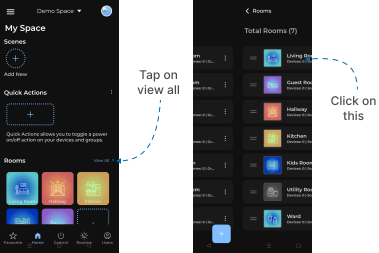
Access All Rooms
- On the right-hand side of the Rooms section, tap View All.
- You will be redirected to the All Rooms screen.
-
Select Room Options
- Locate the room you want to delete.
- On the right-hand side of the room, tap the More Options (3 dots) icon.
-
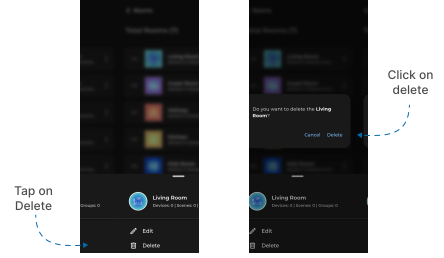
Choose Delete
- From the action popup that appears at the bottom, tap Delete.
-
Confirm Deletion
- A confirmation popup will appear.
- Tap Delete again to confirm.
- Completion
- The selected room will be permanently removed from the Rooms list.
✅ Outcome: The chosen room is successfully deleted and will no longer appear in the Rooms section.