Full Access
This guide explains how to give Full Access sharing in the Loft App.
This feature allows you to provide complete access of your Loft account spaces to another user.
Watch The Video Tutorial
Steps to Give Full Access
Once a user scans your Share Access QR Code, the Access Sharing screen will automatically appear on your device.
If you missed it or it doesn’t appear automatically, you can manually give or edit access by following the steps below:
-
Open the Loft App
-
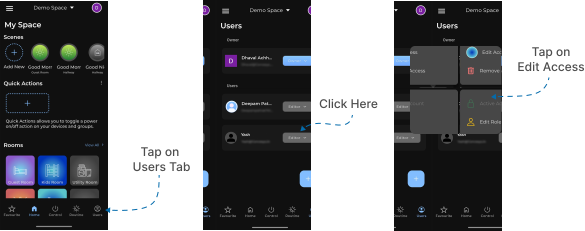
Navigate to the Users Section
- Go to the Users tab located at the bottom-right corner of the screen.
- Tap on the right-hand side of the user to whom you want to give full access.
- A few options will appear — select Edit Access.
- Grant Full Space Access
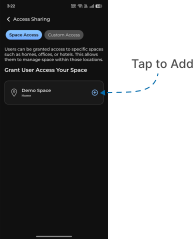
- The Access Sharing screen will appear with two tabs:
- Space Access
- Custom Access
- Under the Space Access tab, all your available spaces will be displayed.
- Tap on the ‘+’ (Add) button next to each space you want to give full access to.
- Once full space access is granted, that user will now have complete control of your selected space based on their assigned role.
- The Access Sharing screen will appear with two tabs:
Note:
Granting Full Access allows the user to control all devices and configurations within the selected space. Proceed carefully when giving this permission.