Set Default Light
This guide explains how to setup Set Default Light in RGB using the Loft App.
⚠️ Note: To set up a Set Default Light, ensure that RGB is properly configured in the Loft App.
Steps to Setup Set Default Light
-
Open the Loft App
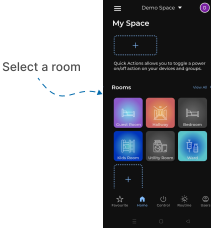
- Navigate to the Rooms section.
-
Select a Room
- Tap on the room from where you want to setup Set Default Light.
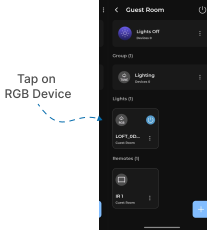
- Locate the Device
- Find the RGB Device, Tap it to proceed setup.
- RGB Interface
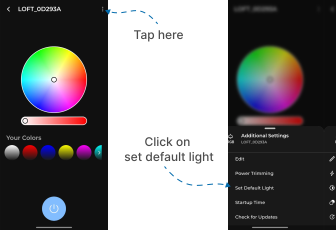
- Locate the three dots
⁝icon at the top-right corner and Tap on it. - A Additional Settings Menu popup will appear with multiple options.
- Tap on Set Default Light.
- Locate the three dots
-
Choose Default Setting
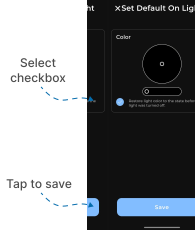
You will now see RGB Color slider with Checkbox:
Option 1: Set Fixed Default Level
- Use the slider to set the desired RGB Color.
- Tap Save.
- Now, After a main power cut and power restoration, the light will turn on at the saved default level.
- Example: If you set the default RGB color to green, the RGB light will turn on with the default green color whenever it is powered on after being turned off.
- After that Tap on Save.
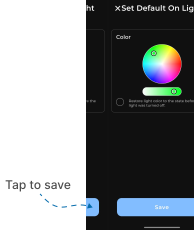
Option 2: Restore Last Used Level
- Select the checkbox shown below the RGB Color slider.
- This ensures that the light will turn on at the same RGB Color it was last operating at before the power cut.
- Example: If you select the checkbox, the RGB light will turn on with the same (previous) color it was set to when it was powered off.
- After that Tap on Save.