Retain State
This guide explains how to setup Retain State in Retro Panel using the Loft App.
⚠️ Note: To set up a Retain State, ensure that Retro Panel is properly configured in the Loft App.
Watch The Video Tutorial
Steps to Setup Retain State
-
Open the Loft App
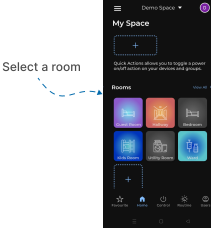
- Navigate to the Rooms section.
-
Select a Room
- Tap on the room from where you want to setup Retain State.
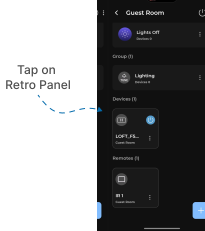
- Locate the Device
- Find the Retro Panel Device, Tap it to proceed setup.
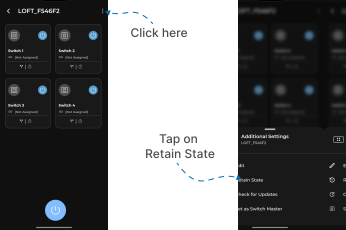
- Retro Panel Interface
- Locate the three dots
⁝icon at the top-right corner and Tap on it. - A Additional Settings Menu popup will appear with multiple options.
- Tap on Retain State.
- Locate the three dots
- Confirmation
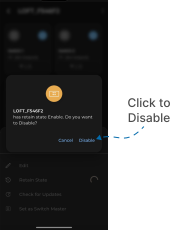
- A confirmation screen will appear.
- By default, Retain State is enabled. This means that if the power goes out and then returns, the panel switches will stay in the same state as they were before the power cut.
- When you disable Retain State, it means that if the power goes out and then returns, all panel switches will stay off, even if any switch was on before the power cut.
- Click on Disable.