Scene Panel Fan
This guide explains how to setup BLDC Mode for the Fan on a Scene Panel using the Loft App.
⚠️ Note: This setting is only available if a Fan device is available on your Scene Panel — it varies based on the Scene Panel variant.
Steps to Setup BLDC Mode
-
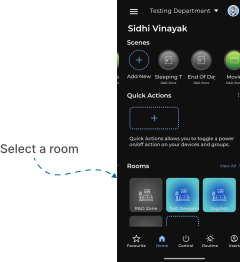
Open the Loft App
- Navigate to the Rooms section.
-
Select a Room
- Tap on the room where the Scene Panel is installed.
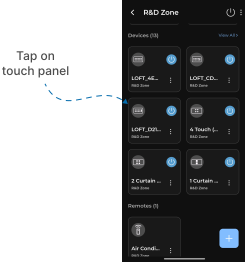
- Locate the Device
- Find the Scene Panel Device whose variant includes a Fan, tap it to proceed.
-
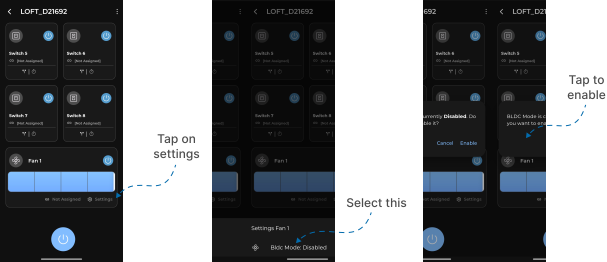
Locate the Fan
- The Fan device is shown with a Settings option.
- By default, BLDC Mode is disabled.
-
Enable BLDC Mode
- Tap on Settings.
- A menu popup appears.
- Tap on BLDC Mode.
- A confirmation popup appears.
- Tap on Enable.
⚠️ Once BLDC Mode is enabled, the fan can no longer be controlled from the app — it can only be controlled through the BLDC stream/medium.
To disable BLDC Mode, you can follow the same process given below.
- Disable BLDC Mode
- Tap on Settings.
- A menu popup appears.
- Tap on BLDC Mode.
- A confirmation popup appears.
- Tap on Disable.
- The fan can now be controlled from the Loft App again.