Share Access
This guide explains how to Share Access in the Loft App.
This feature allows you to share your Loft account with another user.
Watch The Video Tutorial
Keep in mind:
- Editor has higher-level control, including device configuration.
- Operator has limited control, mainly for operating devices.
Visual Representation of Share Access
Phase 1

Phase 2

Phase 3

Phase 4

📝 Note:
You can only share access from your own (owner) account to someone else.
You cannot share access that you have already received from another user as an Editor or Operator.
User Access Hierarchy Explaination
1. User A (Root Owner)
Role: Primary Owner
Actions:
- Grants Editor Access to User B
- Grants Operator Access to User C
- Grants Editor Access to User D
Meaning:
A is the top-level entity from which all access originates.
2. User B (Owner, A)
Ownership: Has own account + Editor Access from A
Actions:
- Grants Editor Access to User D
Meaning:
B can manage or edit resources owned by A and share access further — showing cascading access control.
3. User C (Owner, A)
Ownership: Own account + Operator Access from A
Actions:
- None further
Meaning:
C has limited (operator-level) control, likely with read/execute but not edit/share permissions.
4. User D (Owner, A, B)
Ownership: Has own account and Editor Access from both A and B
Actions:
- Grants Operator Access to User E
Meaning:
D is a shared collaborator with privileges inherited from multiple users (multi-owner context).
5. User E (Owner, D)
Ownership: Own account + Operator Access from D
Meaning:
E’s access is fully dependent on D’s permissions — representing the final node in this permission chain.
Steps to Share Access
-
Open the Loft App
-
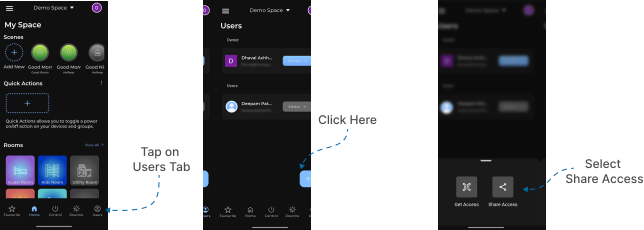
Navigate to the Users Section
- Go to the Users tab located at the bottom-right corner of the screen.
- Tap on the ‘+’ (Add) button.
- A popup will appear — select Share Access.
- Set Access Role and Generate QR Code
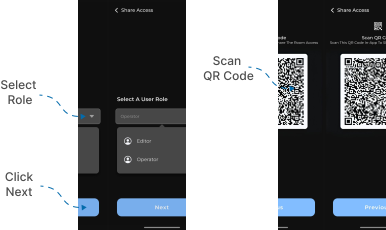
- The Share Access screen will appear with a dropdown menu.
- From the dropdown, select a role for the user you want to share access with — choose either Editor or Operator.
- After selecting the role, tap Next.
- A QR Code screen will appear. The other user needs to scan this QR code from their Get Access screen.
- Once the QR code is scanned, the other user will receive access to your account based on the permissions associated with the selected role.